
Where to find it: Click your name at the bottom-left, then choose Profile Settings or Organisation Settings.
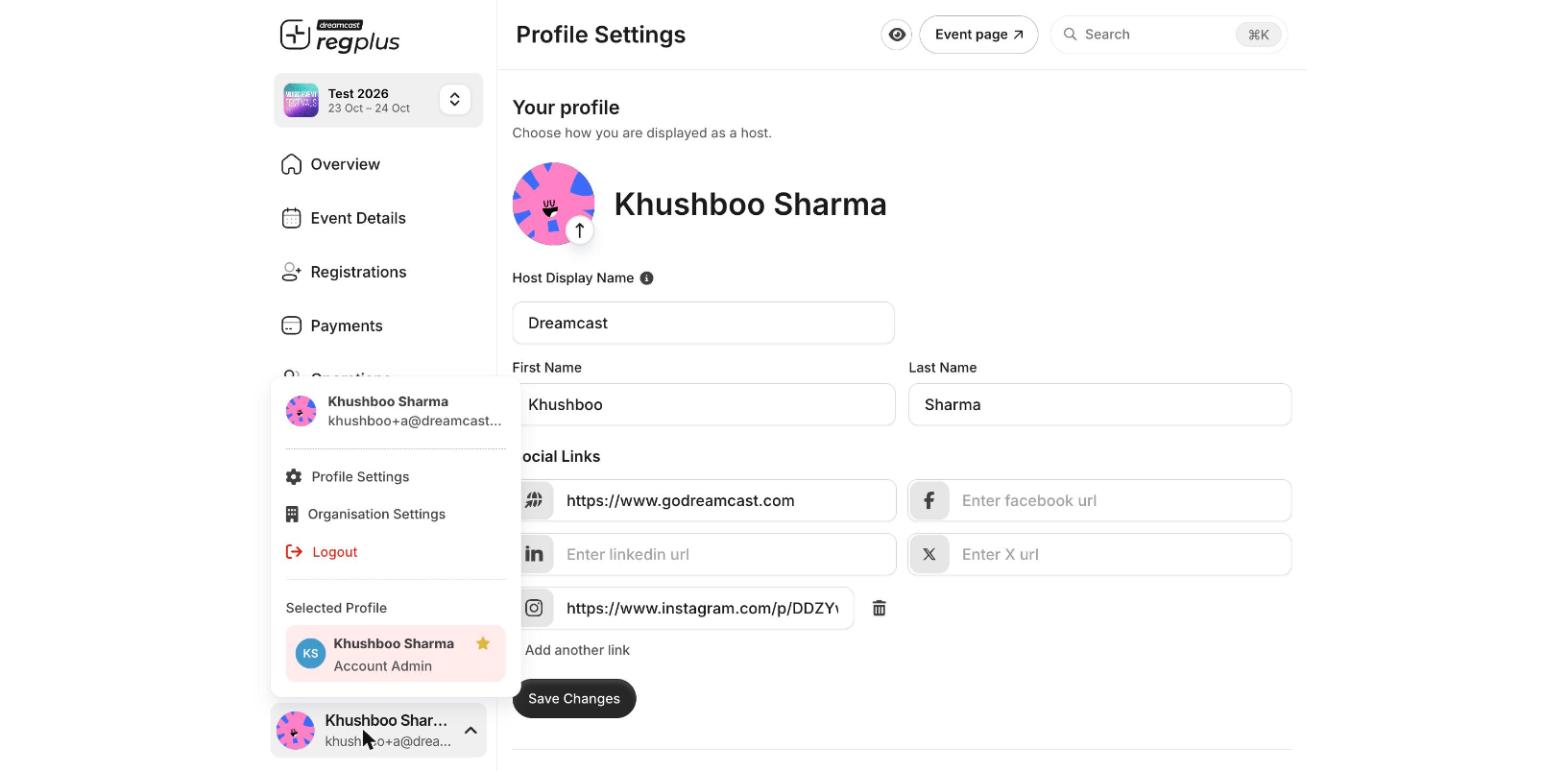
The account menu — profile, organisation, switch profile and logout.
Your profile
Open Profile Settings to choose how you’re shown as a host on your event pages.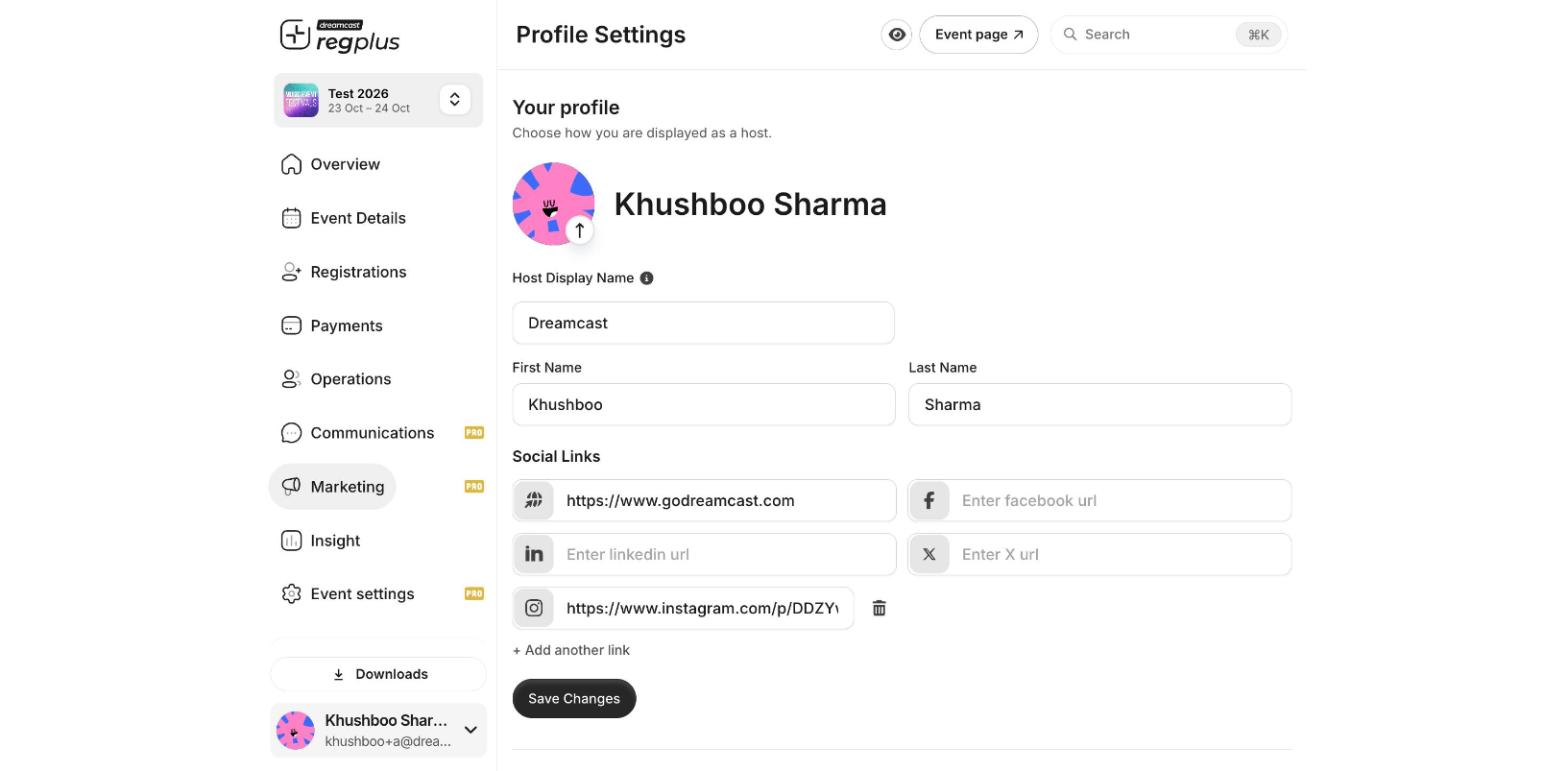
Profile Settings — how you appear as a host.
Click Save Changes to apply.
Your organisation
Open Organisation Settings for the settings shared across every event in your organisation.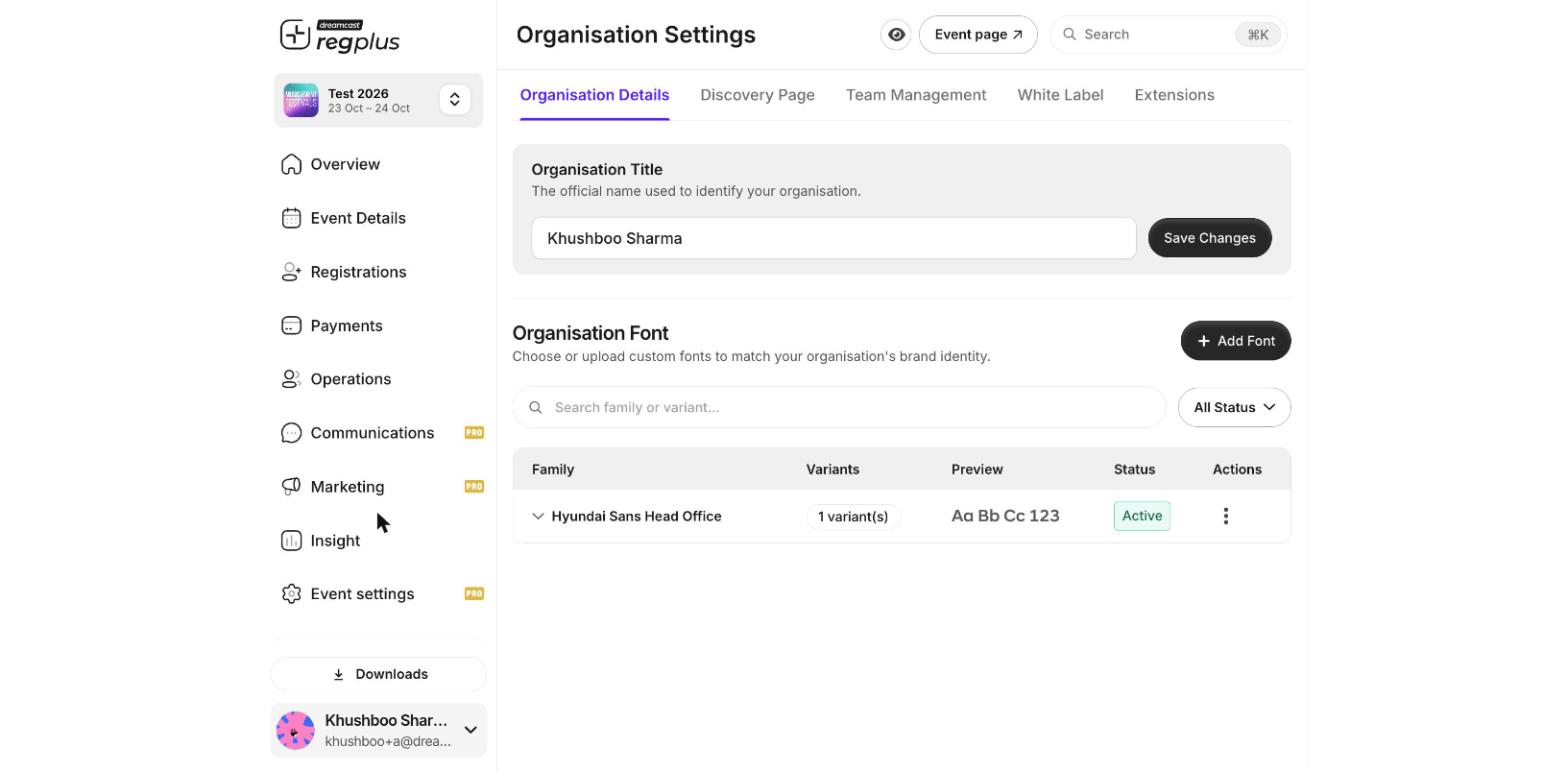
Organisation Settings — details, discovery page, team, white label and extensions.
Switch profile or organisation
If your login has access to more than one organisation — or you hold an event-specific role — you don’t need to sign out to move between them. Open the account menu and pick another entry under Selected Profile. See Sign up & sign in.Sign out
Open the account menu and click Logout. Always sign out on a shared or public computer.FAQs
What's the difference between my name and my Host Display Name?
What's the difference between my name and my Host Display Name?
Your first and last name identify your account. The Host Display Name is what attendees see as the event host — usually your brand or organisation name.
How do I add a teammate to my organisation?
How do I add a teammate to my organisation?
Use Organisation Settings → Team Management to invite them, or set event-specific roles under Event settings & team.
What’s next?
Team access & roles
Let colleagues help run your events.
Find your way around the dashboard
Get oriented in the event dashboard.