
- Your event has at least one ticket type. See Ticket types & pricing.
Add a question
1
Open the form
Go to Registrations → Form. Your form already asks for name, email and phone.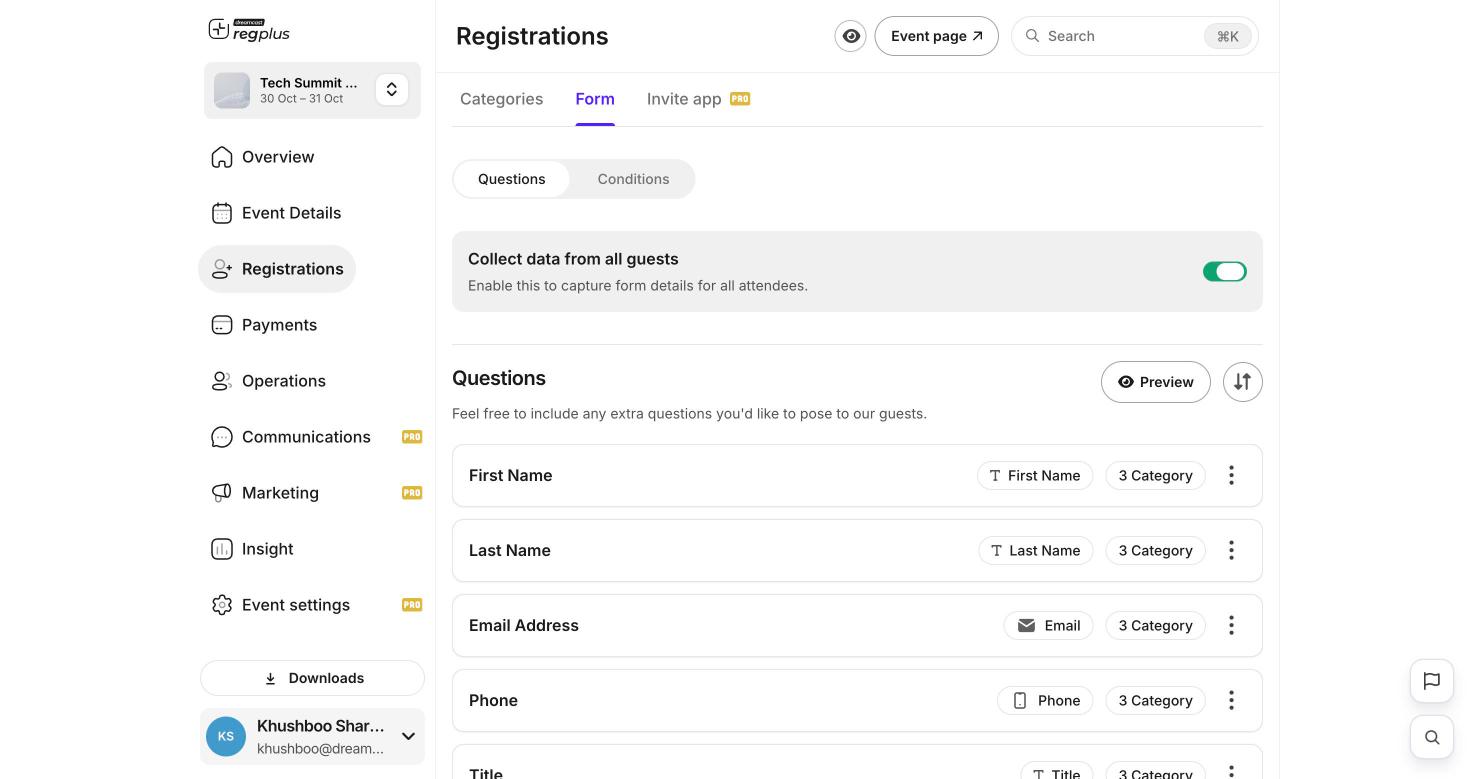
2
Add a field
Click Add Questions, pick a field from the library or add your own, and give it a label. For example a Single Select called Attending as with options In-person and Virtual.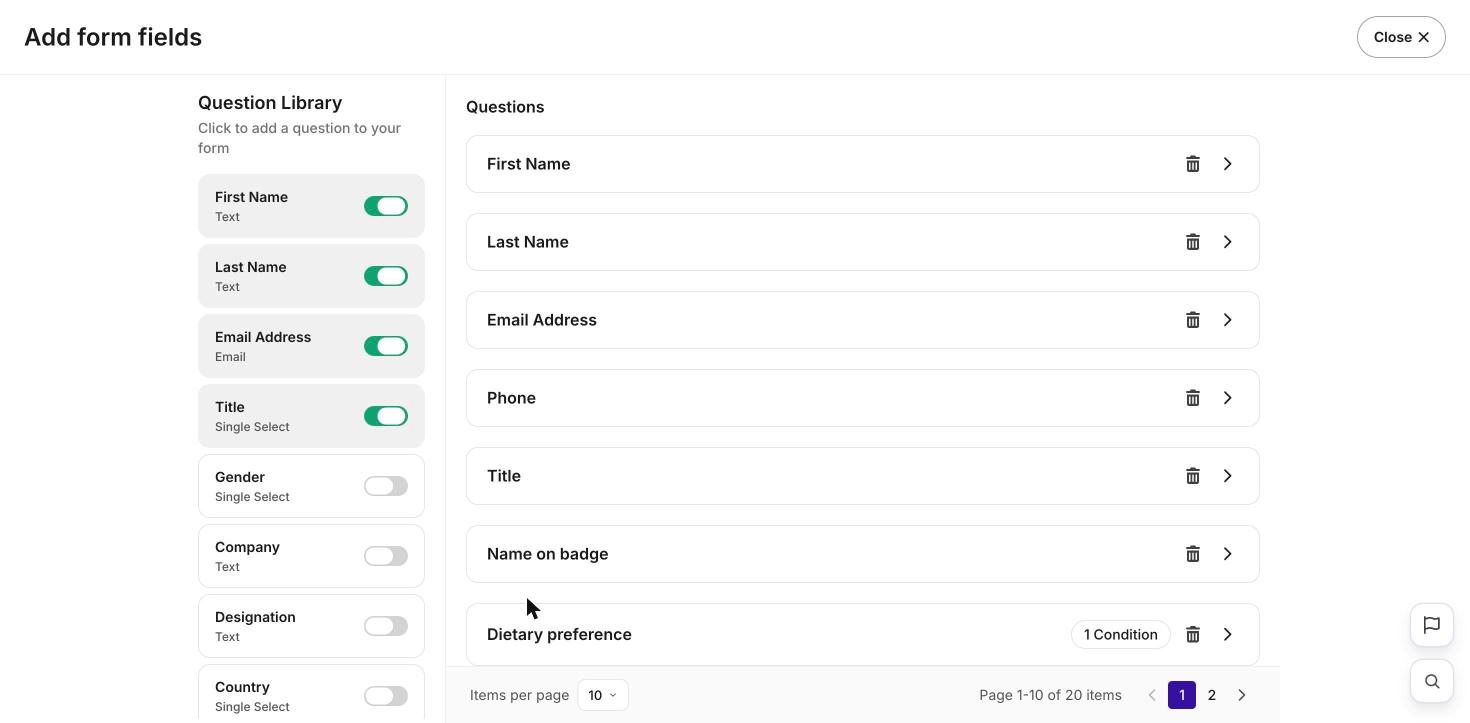
Field types you can use
Text, dropdown, radio, checkbox, number, email, phone, date, URL, and file upload. Each can be set as required so a guest can’t skip it.Show a question only when it applies
You can show or hide a question based on an earlier answer.1
Turn on Advanced
Switch on Advanced to unlock conditions.
2
Add a condition
Open Conditions → Add Condition. Set the rule, for example: if Attending as is In-person, then show Dietary preference.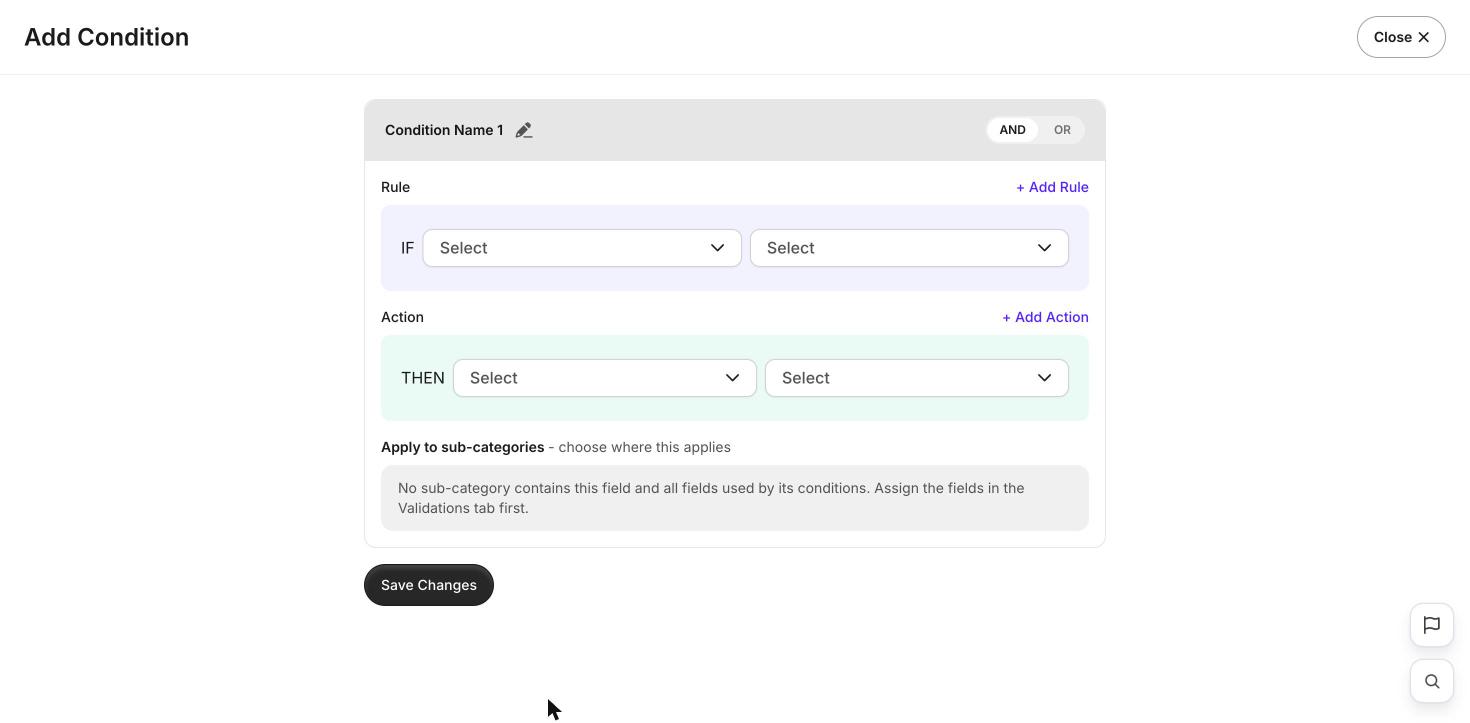
3
Save and preview
Click Save, then open Preview and try each answer to check the form adapts.
Preview your form before you share your event. Pick each option once to make sure the right questions appear.
What’s next?
Ticket types & pricing
Set up what guests sign up for.
Publish & share
Take your event live.