
Ready-made roles
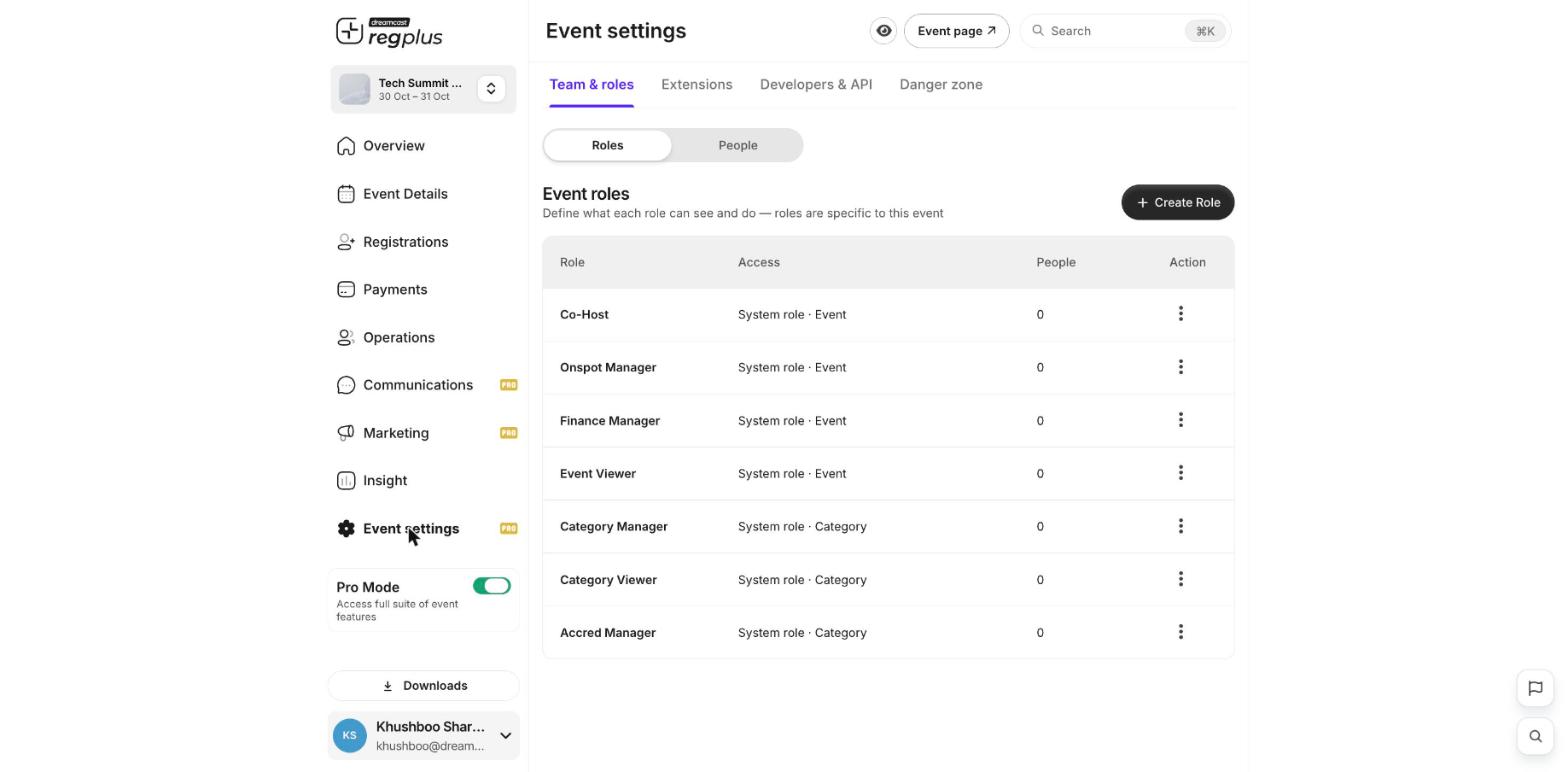
Every event starts with a set of system roles you can assign straight away. Each one works at a level — the whole event, or a single ticket type (category):- Co-Host — broad access to help run the whole event.
- Onspot Manager — for on-ground staff running check-in and badges.
- Finance Manager — access to orders, payments and financial reports.
- Event Viewer — can view the event but not make changes.
- Category Manager — manage a specific ticket type.
- Category Viewer — view a specific ticket type only.
- Accred Manager — manage accreditation.
Create a custom role
If the ready-made roles don’t fit, build your own with exactly the access you want.1
Open Roles
Go to Event settings → Team & roles and stay on the Roles tab. Click + Create Role.
2
Name the role
Give the role a clear name, like Help desk or Sponsor liaison.
3
Set permissions
Pick a section on the left (Overview, Event Details, Registrations, Payments, Operations, Communications, Marketing and more), then tick the exact actions this role should have on the right. Use Select all to grant a whole section at once.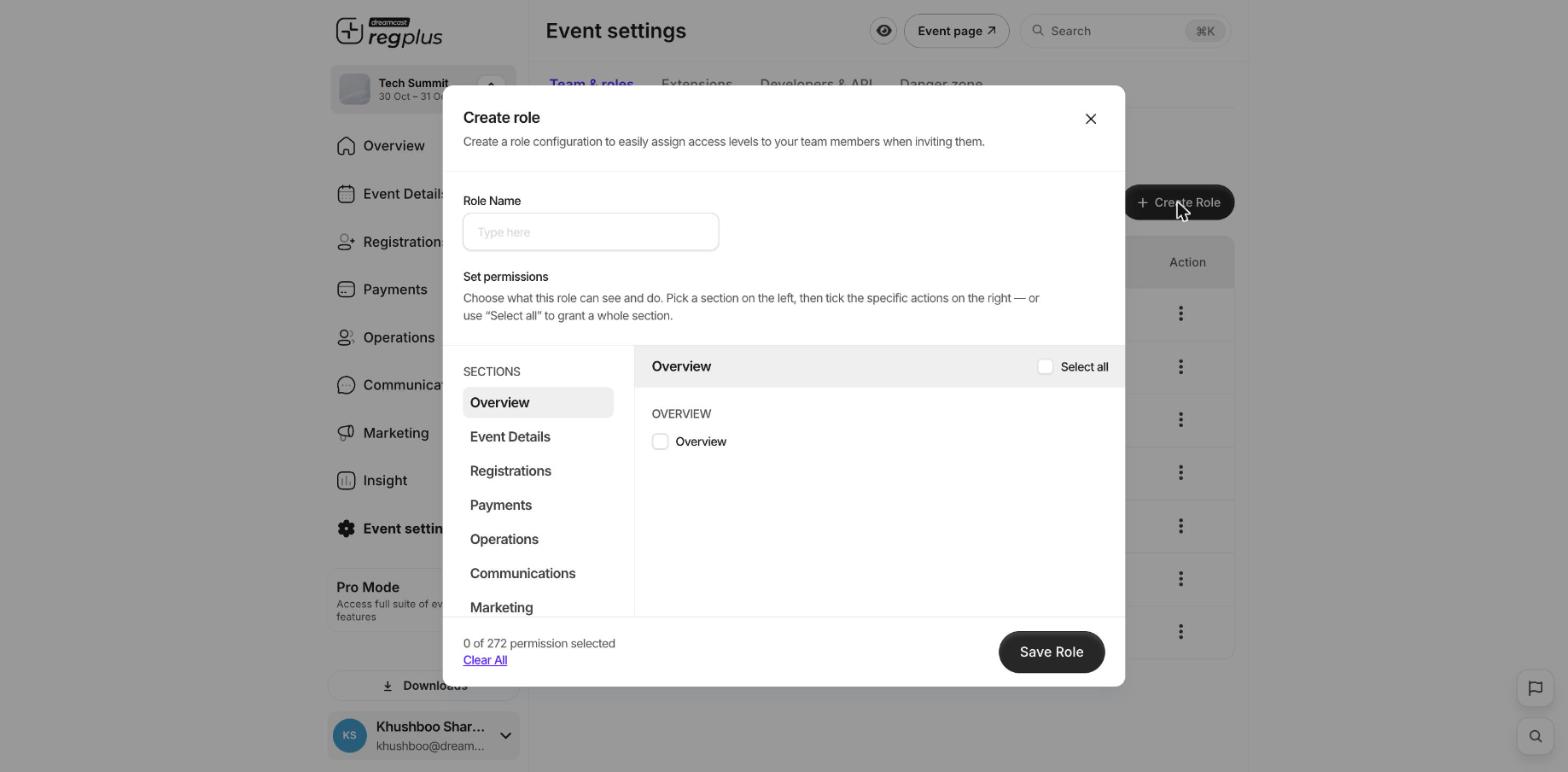
4
Save the role
Click Save Role. It’s now available to assign when you invite a team member.
Assign a role
Roles are assigned when you invite someone on the People tab. See Team access & roles for the invite steps.What’s next?
Team access & roles
Invite colleagues and assign roles.
Advanced mode
Unlock team roles and other tools.