
The Badges screen
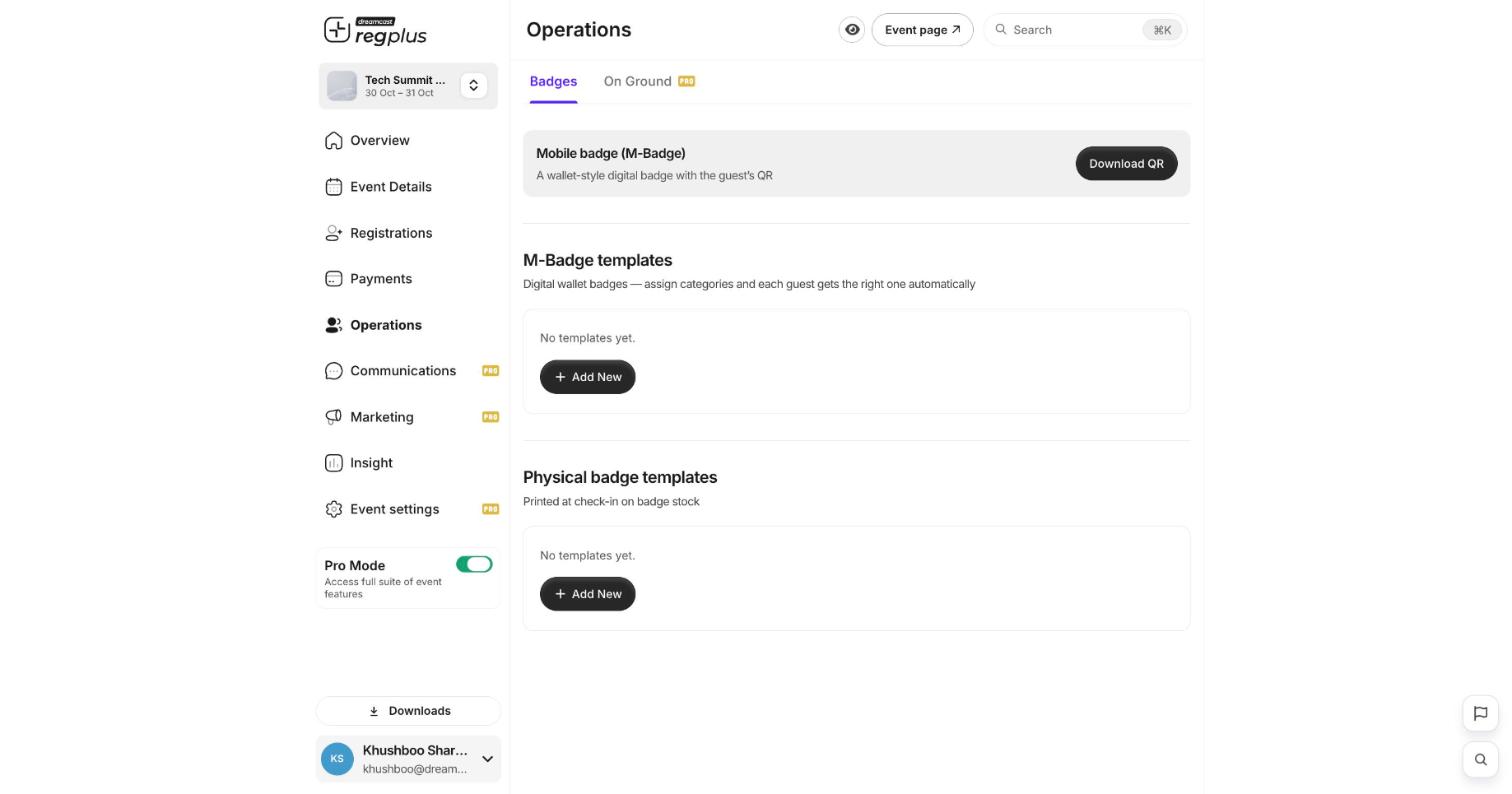
- Mobile badge (M-Badge) — a wallet-style digital badge with the guest’s QR. Use Download QR to grab it.
- M-Badge templates — digital wallet badges; assign them to ticket types so each guest gets the right one automatically.
- Physical badge templates — printed on badge stock at check-in.
Step 1 — Create a template
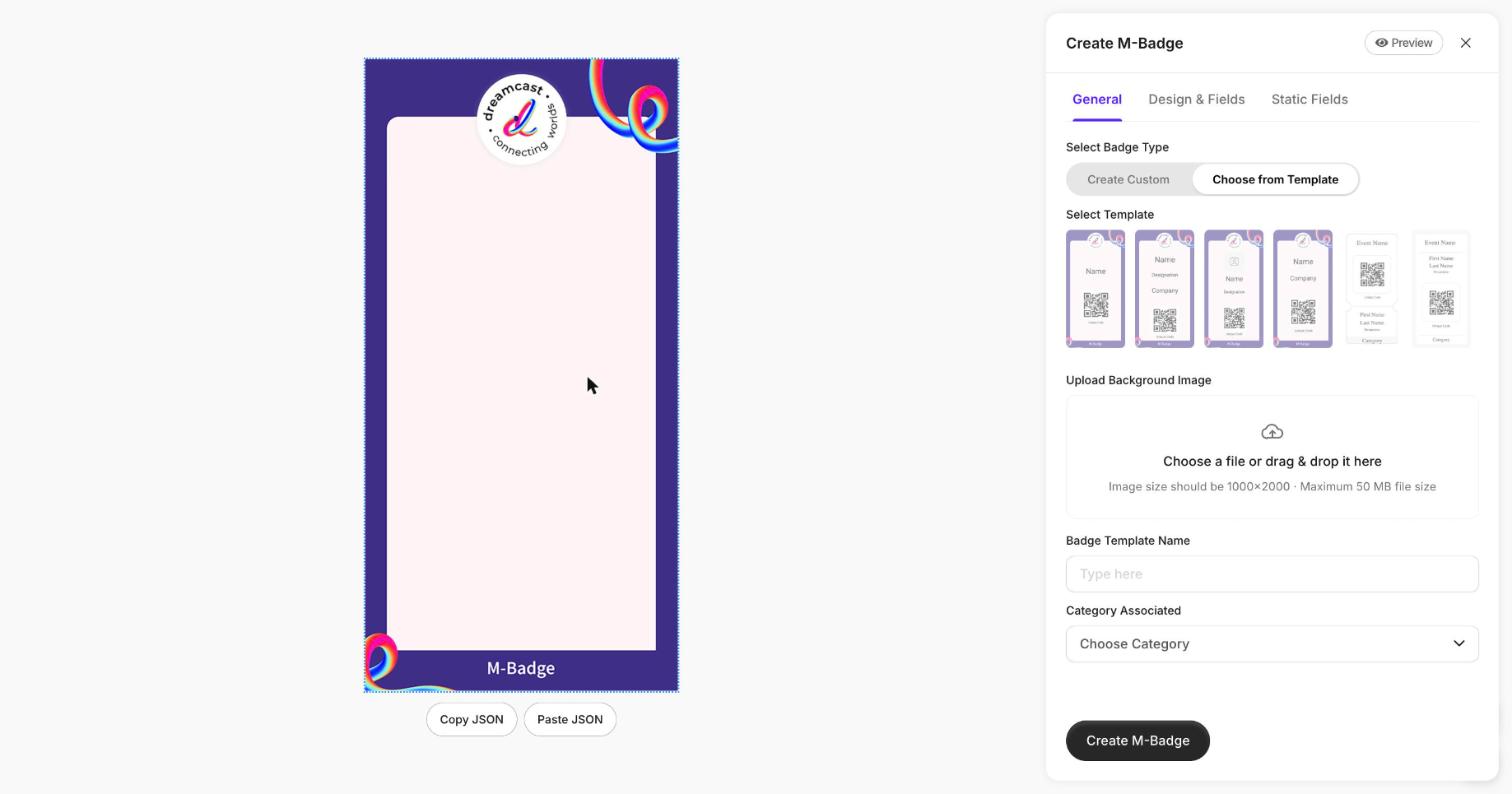
Step 2 — Add fields and static text
- Design & Fields — choose which guest details appear (name, company, designation, QR, category) and position them on the badge.
- Static Fields — add fixed text or graphics that are the same on every badge (your event name, a sponsor line).
Step 3 — Link templates to ticket types
Set the Category Associated so each ticket type pulls the right badge automatically — for example a different colour or label for Delegate, Speaker and Crew.FAQ
What's the difference between M-Badge and physical badges?
What's the difference between M-Badge and physical badges?
M-Badge is digital — guests keep it on their phone / in their wallet and show the QR. Physical badges are printed on badge stock at the check-in desk.
Can each ticket type have its own badge?
Can each ticket type have its own badge?
Yes — set Category Associated on each template, and guests automatically get the badge for their ticket type.
What image size should the background be?
What image size should the background be?
1000×2000 pixels (portrait), up to 50 MB. Keep important details away from the edges so nothing is lost when printed.
What’s next?
Check in guests on event day
Scan badges at the door.
Let guests download their badge
Self-service M-Badge download.