
The form at a glance
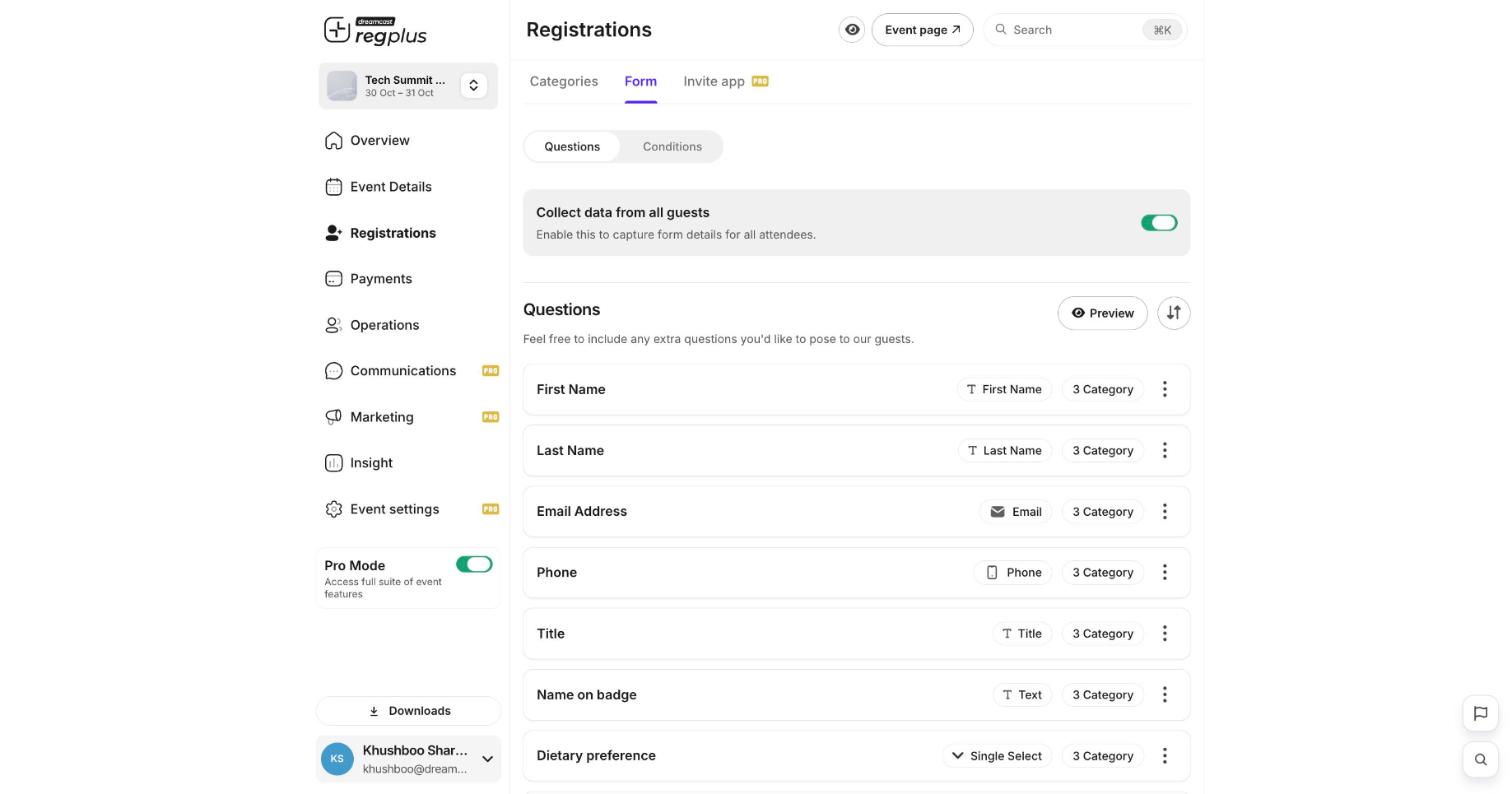
- Collect data from all guests — turn on to capture form details for every attendee in an order, not just the booker.
- Each question shows its field type (Text, Email, Phone, Single Select…) and how many ticket types it applies to.
- Use Preview to see the form as guests will, and the ⋮ menu on a question to Edit or Delete it.
Step 1 — Add questions
Open a question’s ⋮ → Edit (or add one from the library) to open the field editor. The Question Library on the left lists every field type you can add: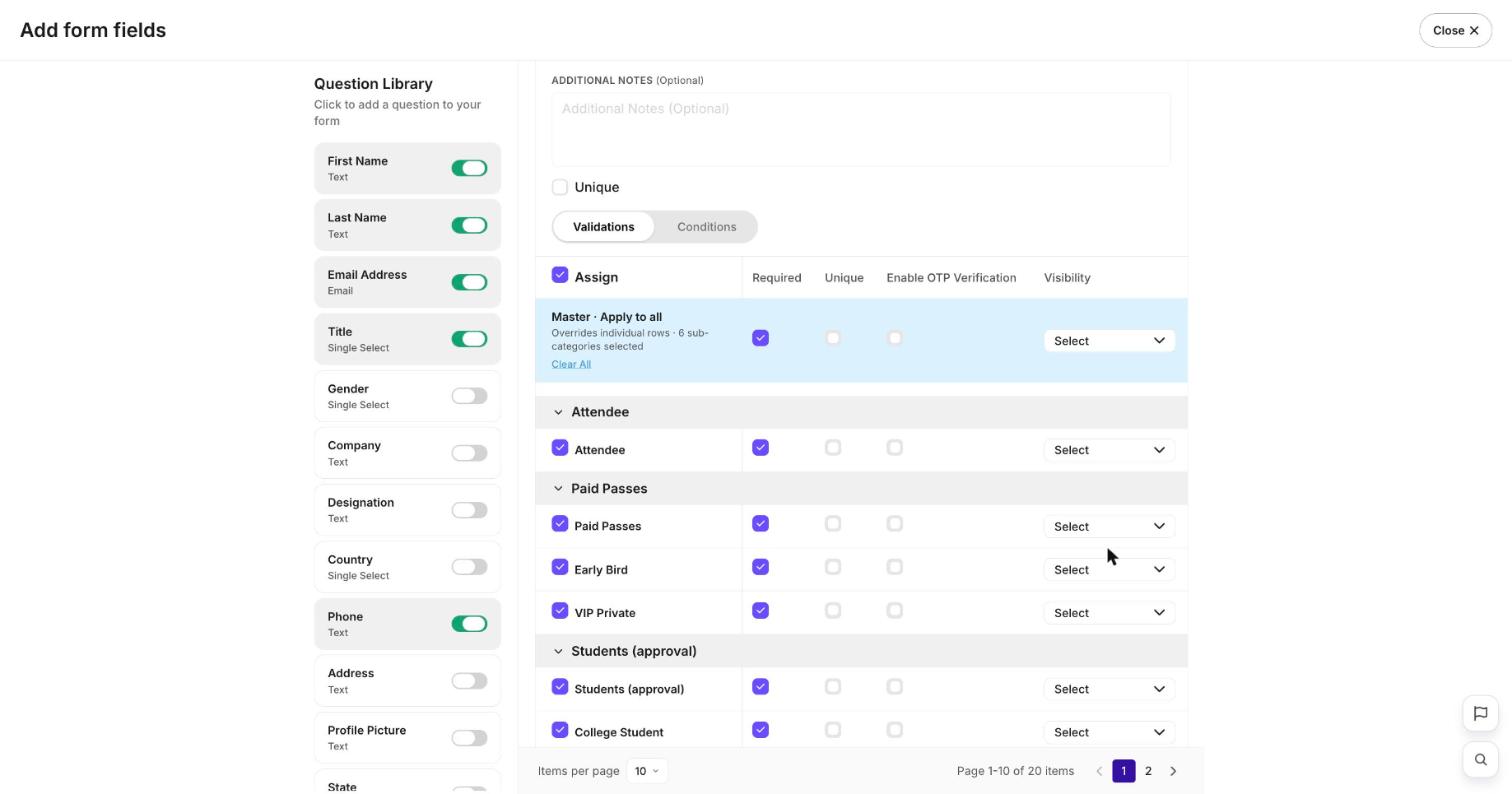
Step 2 — Set validations per ticket type
In the field editor’s Validations tab you control the question for each ticket type at once. The Master · Apply to all row sets every ticket type together, or set each row individually:Step 3 — Show questions conditionally
Switch to the Conditions tab to show a question only when an earlier answer matches a rule — for example, ask “Please specify your diet” only when Dietary preference is Other.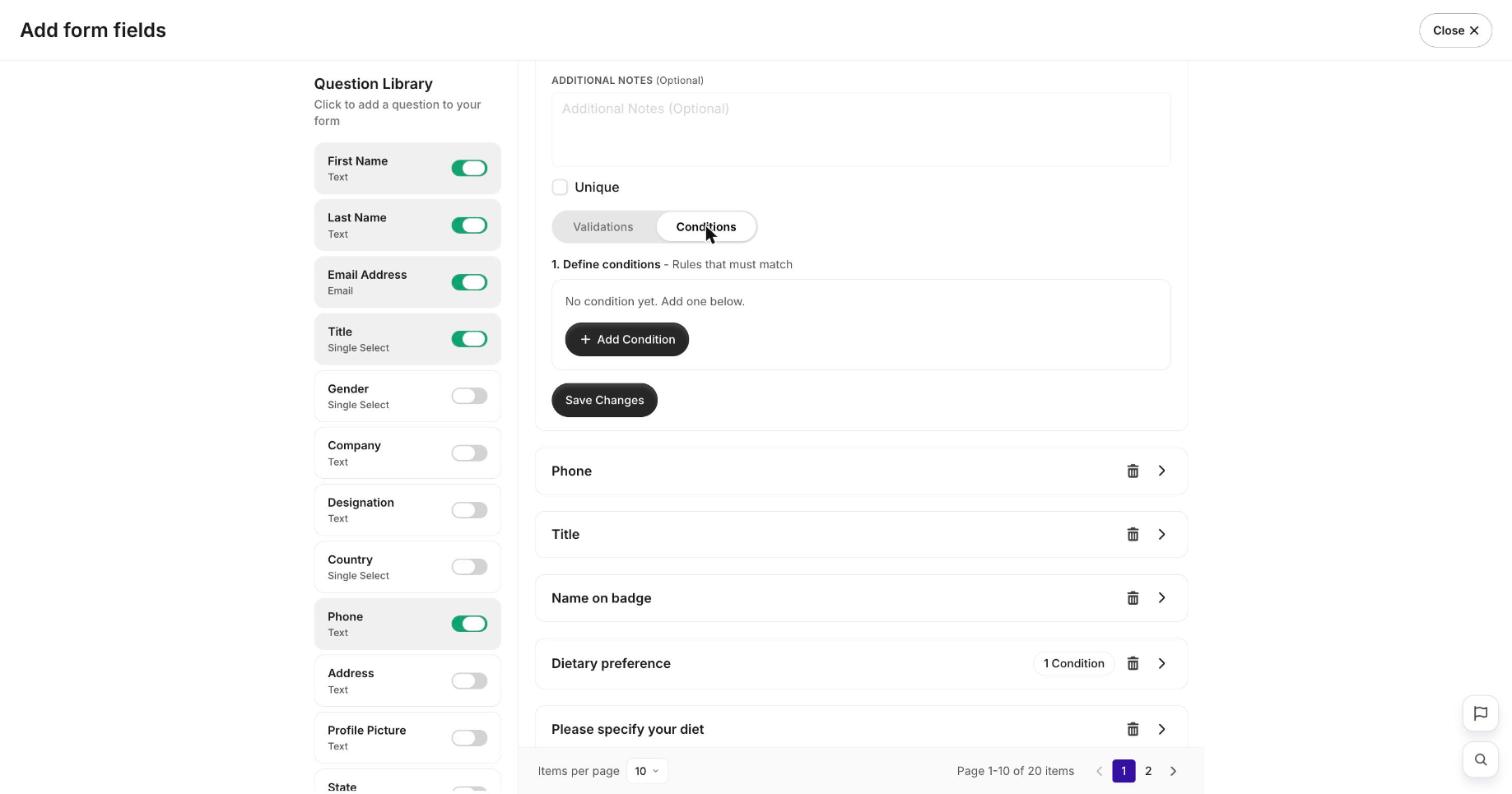
1
Open Conditions
In the field editor, open the Conditions tab and click Add Condition.
2
Define the rule
Choose the earlier question, the match (e.g. is), and the value that should reveal this question.
3
Save
Click Save Changes. Questions with a rule show a condition badge in the list.
FAQ
Can different ticket types ask different questions?
Can different ticket types ask different questions?
Yes. Each question’s Validations row is set per ticket type, and Visibility lets you hide a question for ticket types it doesn’t apply to.
How do I stop one person registering twice?
How do I stop one person registering twice?
Turn on Unique for a one-per-person field like email or a staff ID. See Prevent duplicate sign-ups.
Can I edit the form after publishing?
Can I edit the form after publishing?
Yes — changes go live immediately. Take care removing or renaming a field guests have already filled, as it affects the data you’ve collected.
What’s next?
Build your ticket types
What guests choose before the form.
Design and print badges
Put form answers on badges.