
What you’ll need
- A PayPal Business account.
- Access to Payments → Configurations in your Reg Plus event.
- The PayPal Developer Dashboard open in another tab.
Step 1 — Open the PayPal connection form
1
Go to Payments
Open Payments → Configurations in your event.
2
Add PayPal
Under Other gateways, click Add Other and choose PayPal.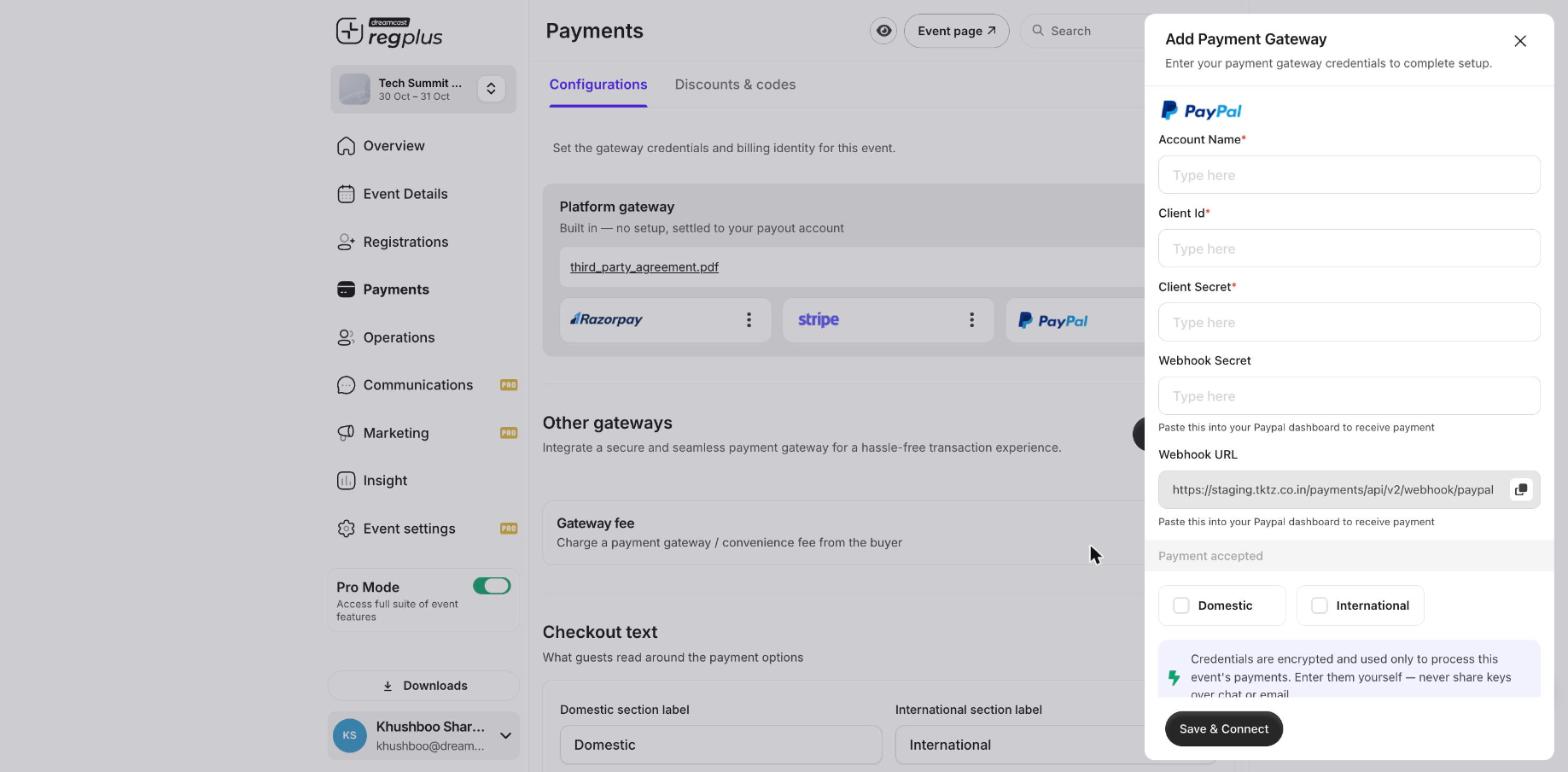
Step 2 — Get your credentials and webhook from PayPal
1
Create an app
In the PayPal Developer Dashboard, go to Apps & Credentials and create (or open) an app. It gives you a Client ID and a Secret.
2
Add a webhook
In that app’s settings, add a webhook using the Webhook URL from the Reg Plus form, and subscribe to the payment events. Note any webhook secret if PayPal provides one.
PayPal has a Sandbox (test) and a Live environment, each with its own credentials. Trial in Sandbox, then switch to Live before taking real bookings.
Step 3 — Finish the connection in Reg Plus
Fill each field, then click Save & Connect.Test before you go live
Make a test booking and confirm it shows as paid in Insight → Financial. If it’s charged but not confirmed, re-check the webhook URL in your PayPal app.What’s next?
Set up Razorpay
Connect Razorpay for domestic payments.
Set up Stripe
Connect Stripe for international cards.