
Turn on discounts
Open Payments → Discounts & codes and switch Discount on. This shows the Promo Code box on your event’s landing page so guests can enter a code at checkout.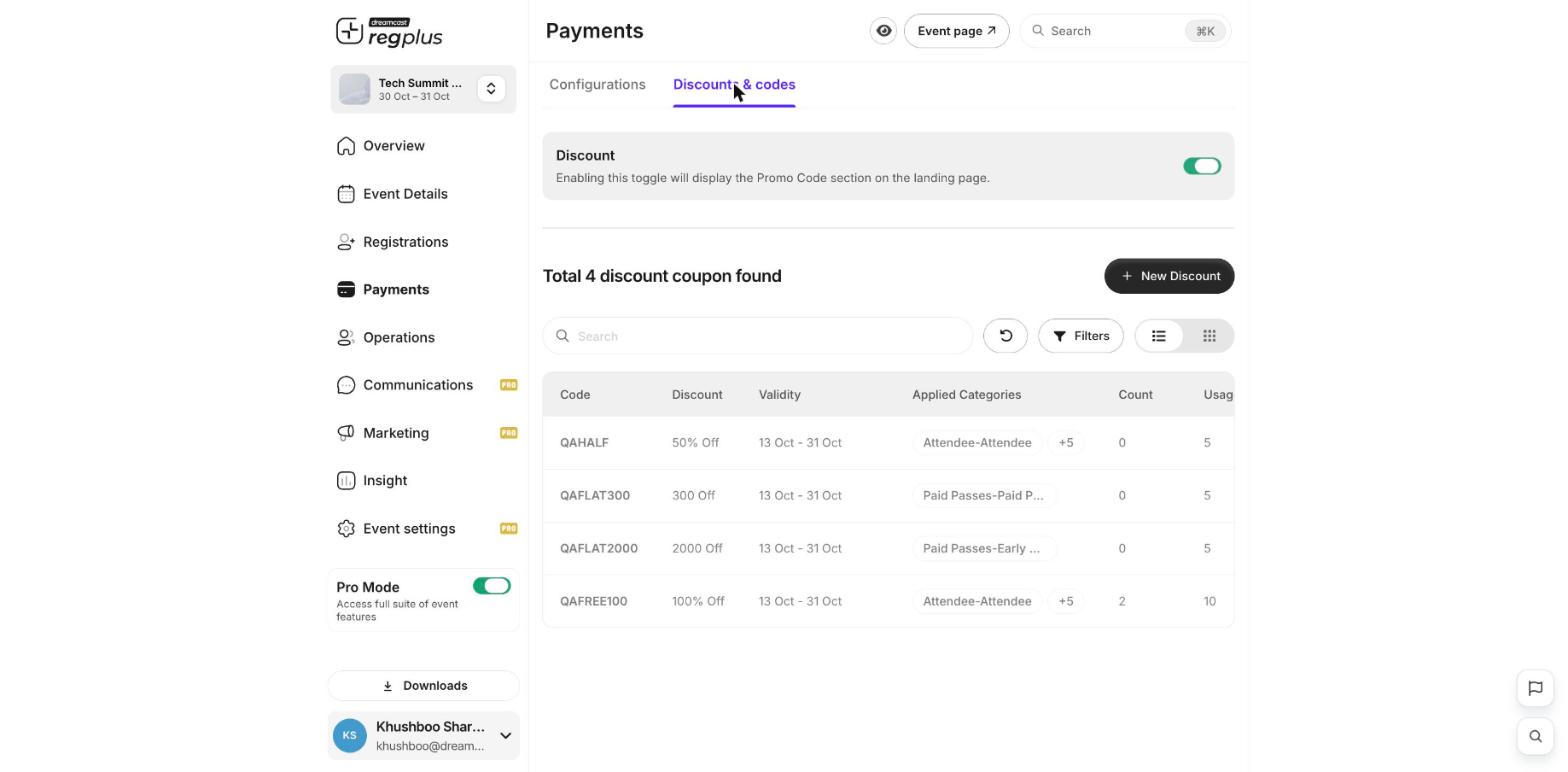
Create a single code
1
New Discount
Click New Discount and stay on the Single Discount tab.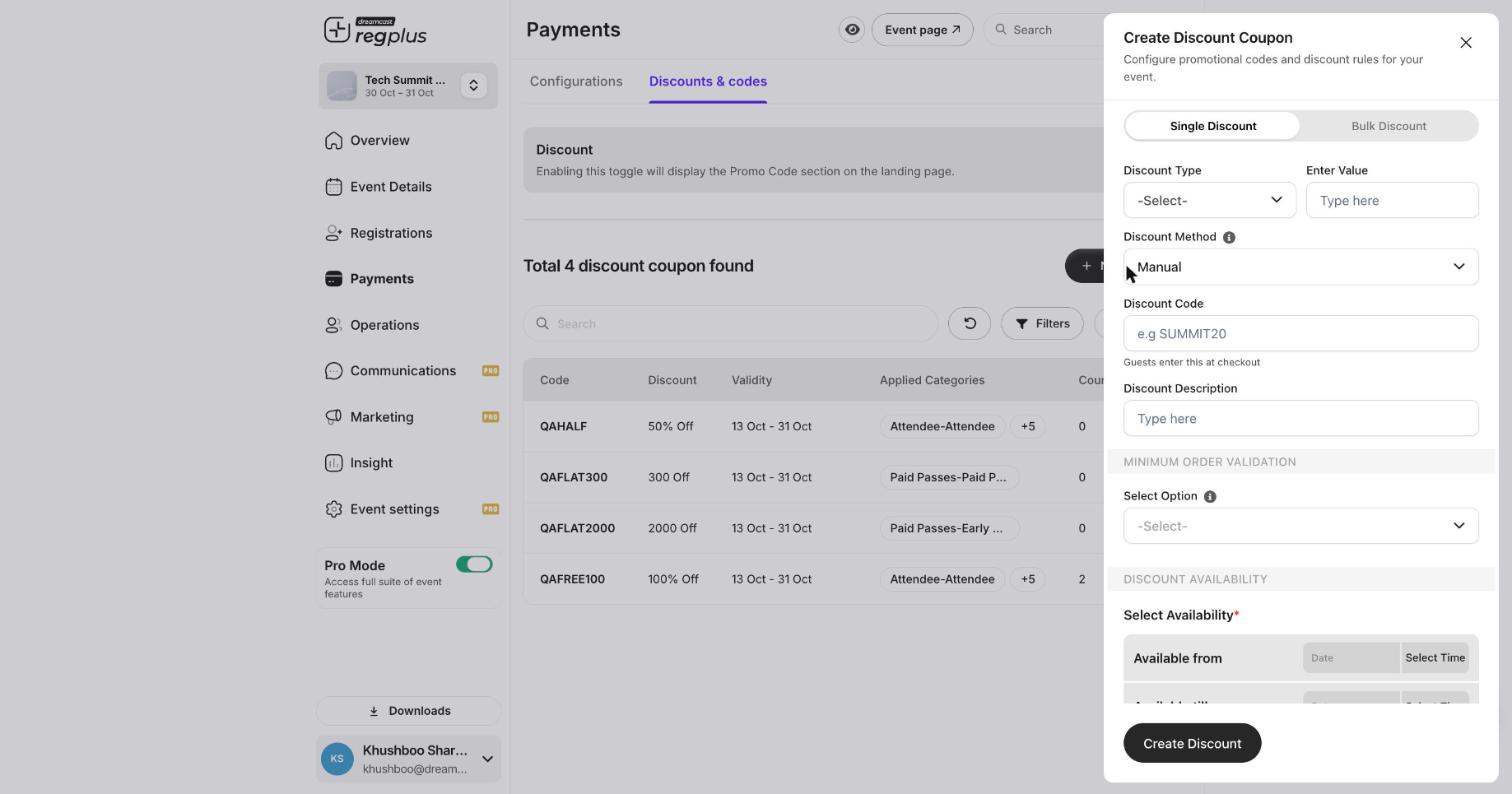
2
Set the discount
Choose a Discount Type — a percentage (e.g. 50% off) or a flat amount (e.g. ₹300 off) — and enter the value.
3
Name the code
Enter the Discount Code guests will type at checkout (e.g. SUMMIT20) and an optional description for your own reference.
4
Add limits and rules
Optionally set a minimum order rule, a usage limit, a validity window (start and end dates), and which ticket types the code applies to.
5
Create
Click Create Discount. The code is live immediately within its validity window.
Field reference
Create codes in bulk
Switch to the Bulk Discount tab to generate many unique codes at once — handy for sponsor allocations or one-use invites, where each guest gets their own code.What’s next?
Configure payments & taxes
Fees, checkout text and invoices.
Set up ticket types & pricing
What the codes apply to.