
Step 1 — Start a new event
Click the event switcher at the top of the sidebar and choose Create New Event (or View All Events → Create).Step 2 — Choose the event type
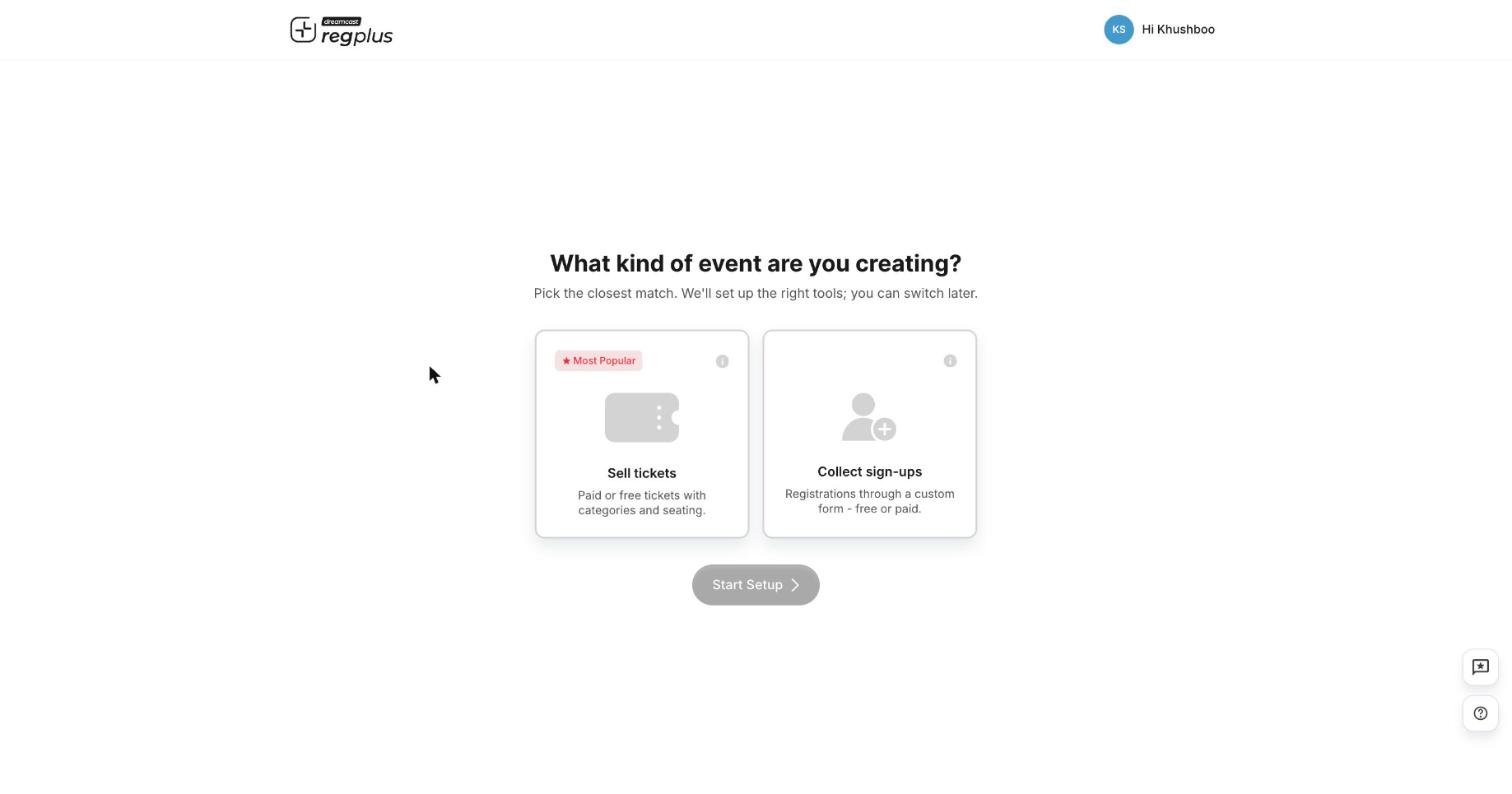
This only sets your starting tools. You can switch later, so pick the closest match and move on.
Step 3 — Fill in the basic details
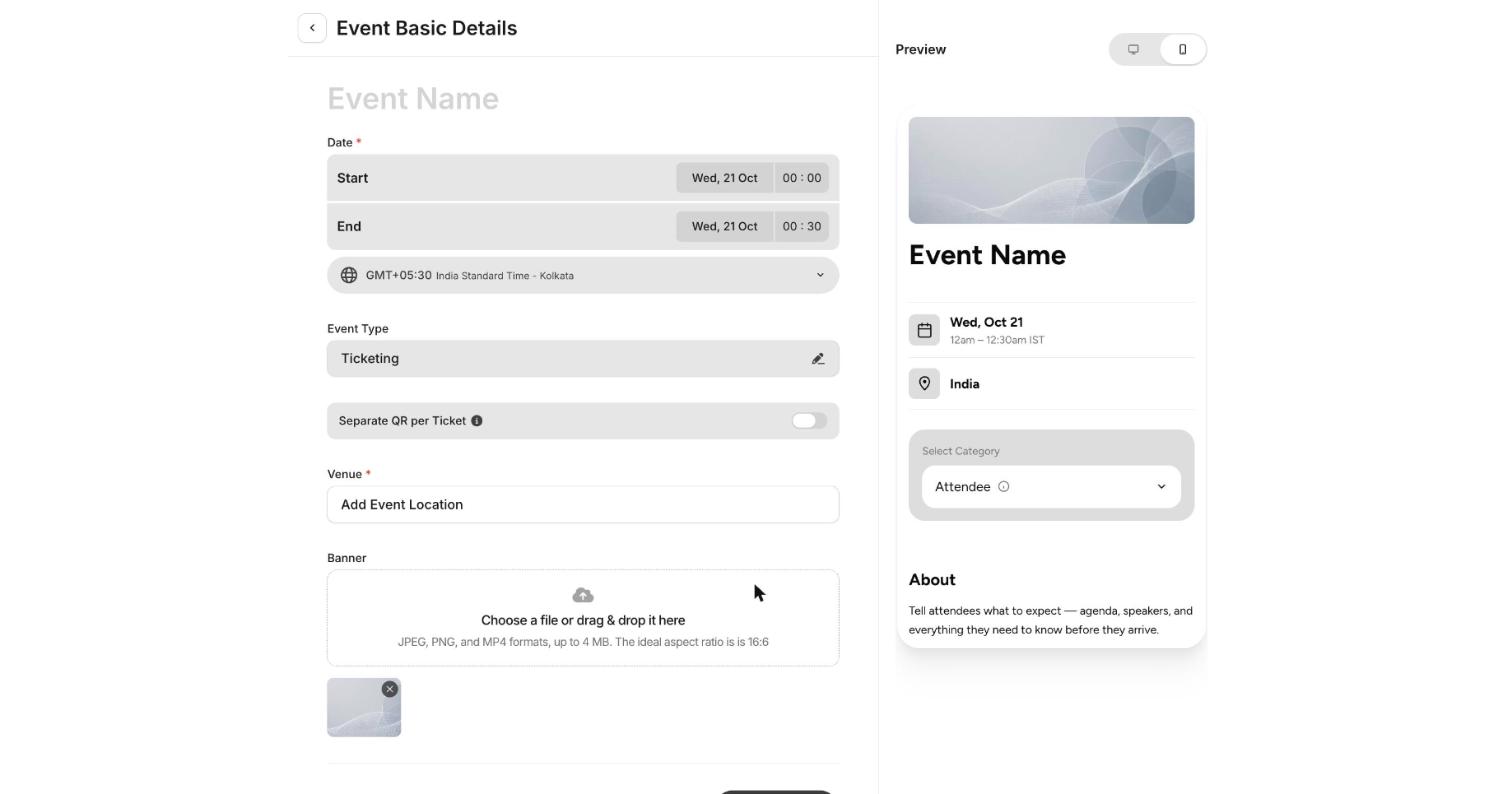
Save to create the event. You’ll land on the Overview with a setup checklist for the rest.
What to set up next
After the event exists, work through these in order:Build your ticket types
Categories, tiers, pricing and sale windows.
Build your registration form
Decide what details you collect.
Configure payments & taxes
Gateway, fees and invoices.
Design and print badges
Mobile and physical badges.
FAQ
Can I change the event type after creating it?
Can I change the event type after creating it?
Yes. The type only decides which tools are switched on at the start; you can adjust later from the event’s settings.
When should I turn on Separate QR per Ticket?
When should I turn on Separate QR per Ticket?
When one person books several tickets for different people and each attendee needs to scan in on their own. Leave it off if the buyer checks in the whole group together.