
In short
Every ticket type has its own Guests list — the single place to see who has registered, add people yourself, chase pending payments or approvals, and export the list for your team. This guide walks through the whole screen, field by field.Where to find it: Open Registrations from the left menu, find the ticket type you want on the Categories tab, and click Manage. On the ticket type screen, open the Guests tab.
Read the guest list at a glance
The top of the Guests tab shows a donut with the headline count (for example 0 guest going) and the ticket’s capacity. Next to it is a row of status chips so you can see, in one glance, where everyone stands.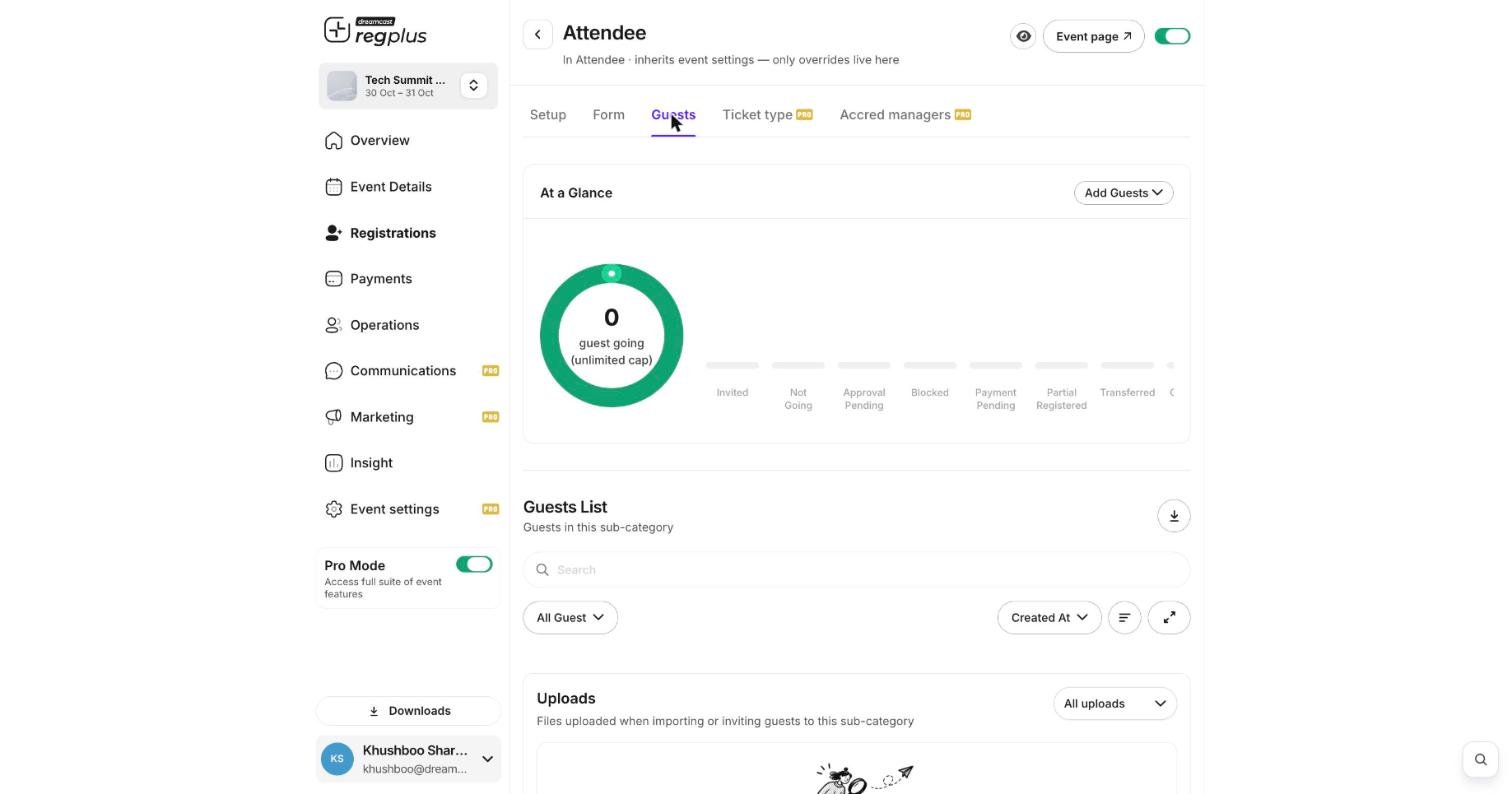
The Guests tab: a status summary at the top, the full list below, and Add Guests on the right.
What each status means
Add guests yourself
You will not always wait for people to register on the public page — you may want to invite a VIP list, or add walk-ups and sponsors. Use Add Guests (top right of the summary) and pick one of two options:Invite
Send an invitation to one person or a whole list. Good for guest lists, VIPs and RSVPs.
Import
Upload a spreadsheet of people to bring them in all at once.
Invite one or many
Choosing Invite opens the Invite Guests panel. Three toggles across the top control the invite, and a Single Invite / Bulk Invite switch lets you add one person or paste a list.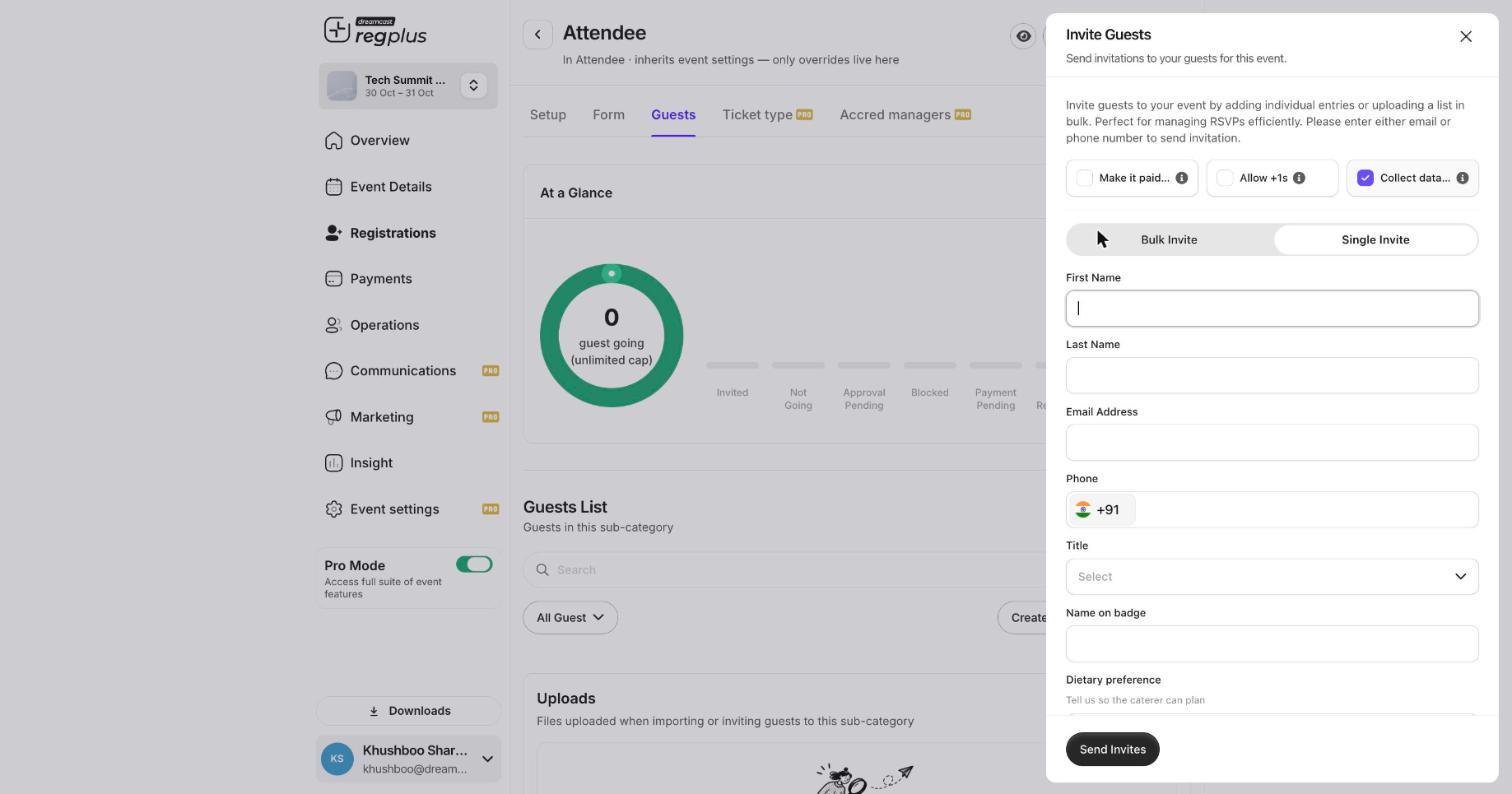
The Invite Guests panel — toggles on top, then the single-invite form.
Any custom questions from your registration form appear below these fields when Collect data is on. Click Send Invites to fire the invitations.
Import a list
Choosing Import lets you upload a file of guests and bring them in together — useful when a partner or sponsor hands you a delegate list. Every file you import (or invite from) is kept under the Uploads section at the bottom of the Guests tab, so you always have a record of what was brought in.Search, filter and export
The Guests List below the summary is your working view of everyone in this ticket type.- Search by name, email or phone to jump to one person.
- Use the All Guest dropdown to filter by status (for example, show only Payment Pending).
- Use Created At to change the sort order.
- Click the download icon to export the current list to a file for your team or your badge printer.
FAQs & troubleshooting
A guest is stuck on Payment Pending — what do I do?
A guest is stuck on Payment Pending — what do I do?
Their payment did not complete. Ask them to finish paying from the link in their email, or, if they paid another way, confirm the registration manually from their row. You can also cancel it to free up the seat.
Can I invite someone without making them fill the form?
Can I invite someone without making them fill the form?
Yes. In the Invite Guests panel, turn Collect data off. The guest is added with just the name and contact details you enter, and skips the registration form.
What is the difference between Invite and Import?
What is the difference between Invite and Import?
Invite sends each person an invitation they accept to register. Import adds the people straight into the list from a file. Use Invite when you want guests to confirm; use Import when you already have a confirmed list.
How do I stop someone from attending?
How do I stop someone from attending?
Open their row and block them. A blocked guest keeps their record but cannot check in or register again.
What’s next?
Set up the Invite app
Give team members their own invite quotas to grow the guest list.
Set up on-ground check-in
Scan guests in at the door with the On-Ground app.