
In short
Insight is where you see how your event is doing — money in, who registered, who checked in, where your traffic came from, and which emails bounced. Every report can be filtered by date, shared as a live link, and set to arrive in your inbox on a schedule.Where to find it: Open Insight from the left menu. This is a Pro feature. Each report sits on its own tab across the top: Financial, Marketing & Traffic, Attendee Dynamics, OnGround, Bounced, and Schedule Report.
Financial
The money view — orders, revenue and what is still outstanding.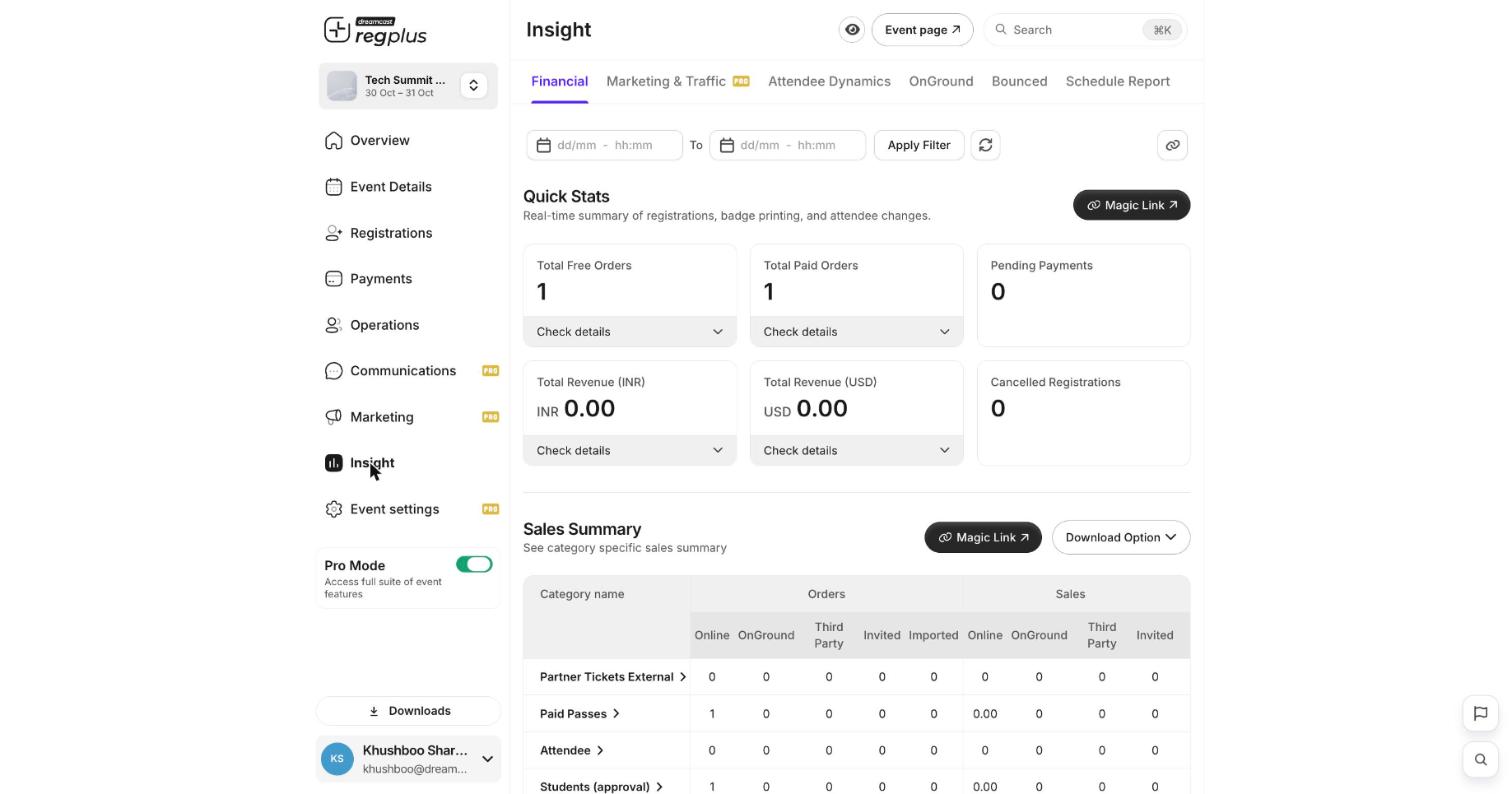
The Financial report: quick stats on top, a category-by-category sales summary below.
Sales Summary breaks orders and sales down by ticket type and by channel — Online, OnGround, Third Party, Invited and Imported — so you can see where your registrations are actually coming from. Use Download Option to export it.
Attendee Dynamics
The people view — who registered and what happened to their tickets.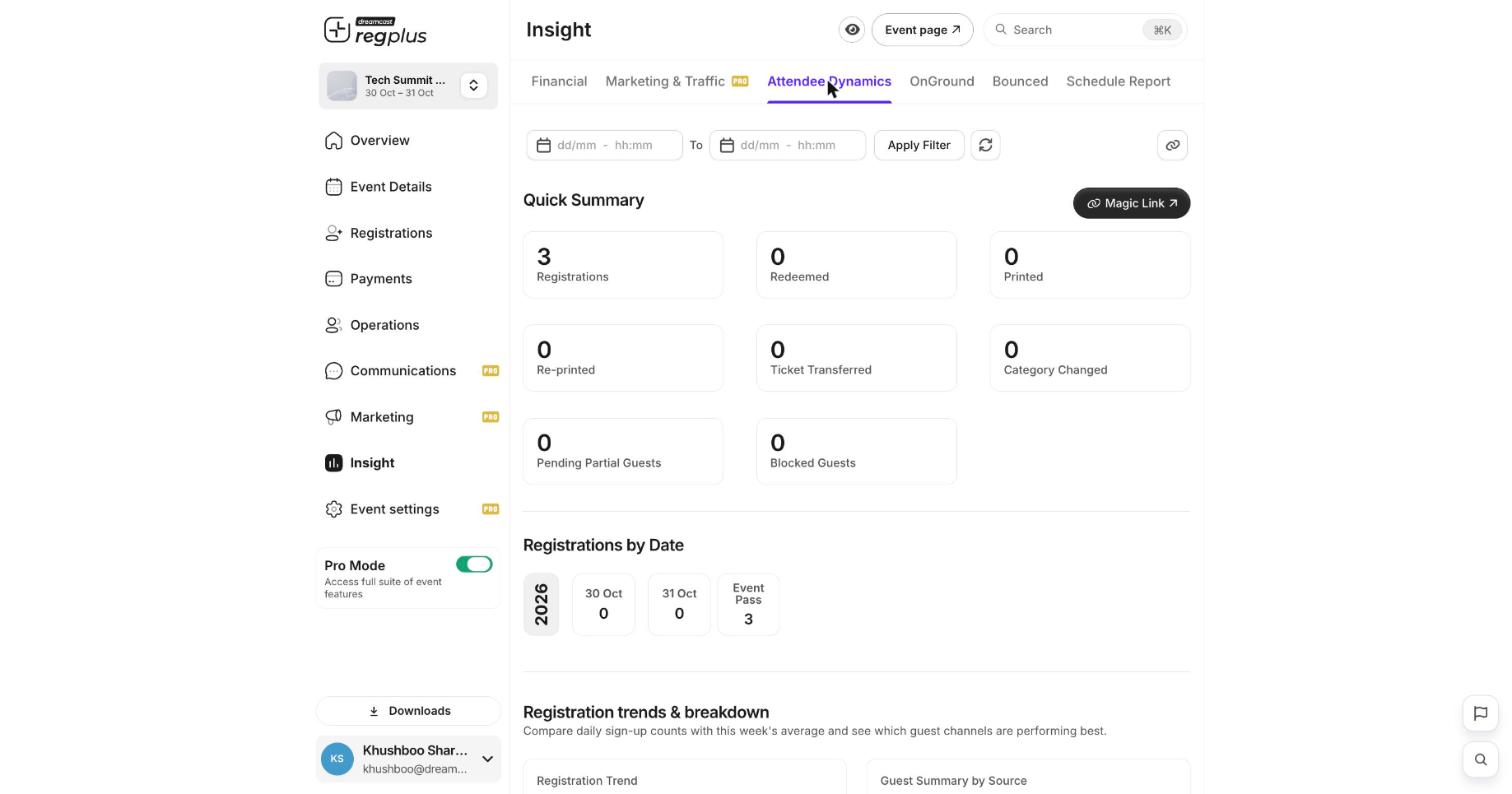
Attendee Dynamics: a summary of registrations and ticket activity, plus trends.
Below that, Registrations by Date and Registration trends & breakdown show daily sign-up counts and a Guest Summary by Source, so you can see which channels are performing best over time.
The other reports
Schedule a report to your inbox
Instead of opening Insight every day, have the numbers delivered automatically.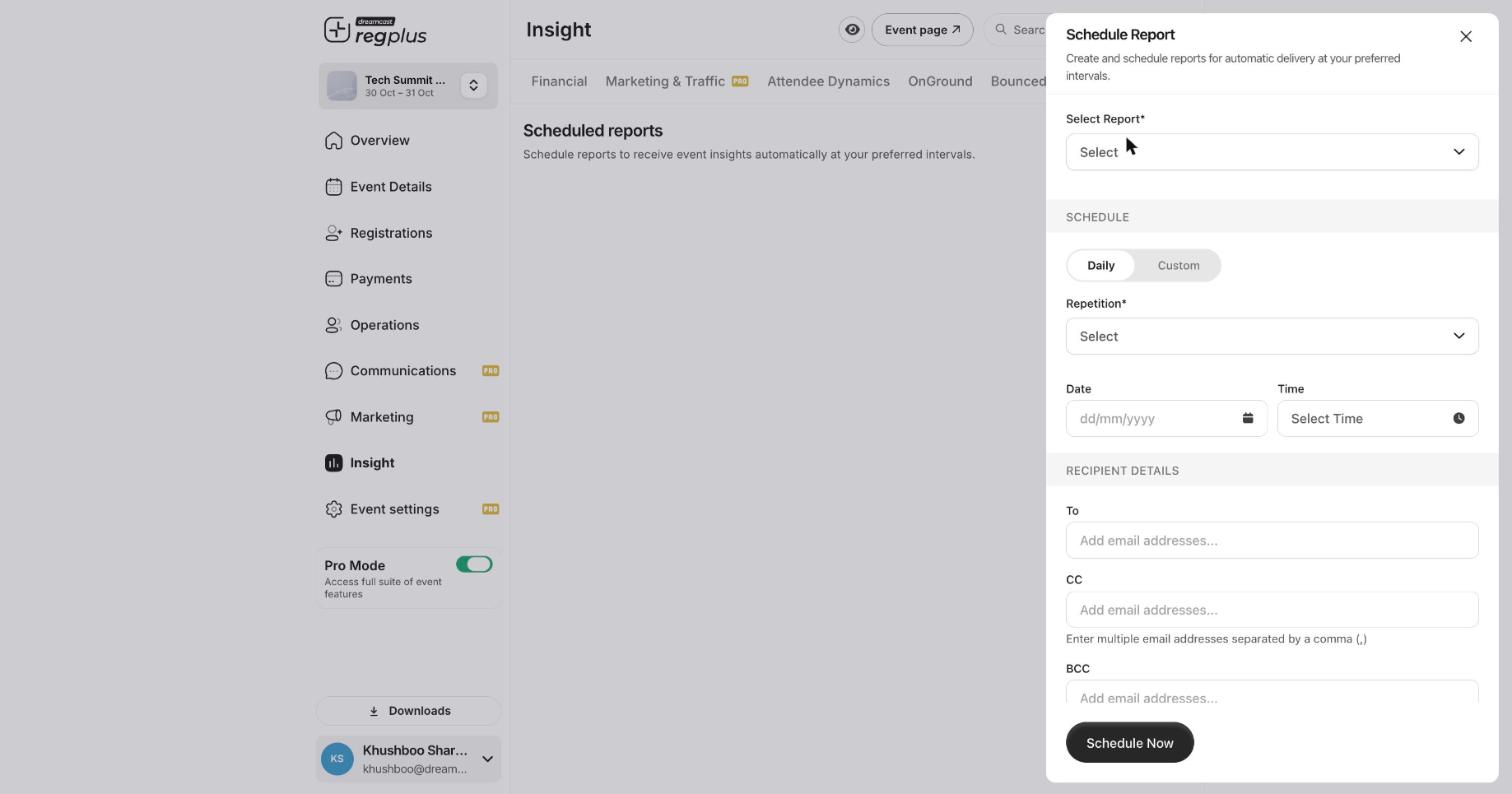
The Schedule Report form — pick a report, a cadence and who receives it.
Click Schedule Now. The report will arrive in those inboxes on the cadence you set.
FAQs & troubleshooting
My numbers look wrong — am I seeing the whole event?
My numbers look wrong — am I seeing the whole event?
Check the date filter at the top of the report. If a From/To range is applied, you are only seeing that window. Clear or widen it to see everything.
What is the difference between the sales channels?
What is the difference between the sales channels?
Online is self-service registrations on your event page, OnGround is walk-ins registered at the venue, Third Party is external/partner sources, Invited came through invites, and Imported were uploaded by you.
Can I get a report automatically every morning?
Can I get a report automatically every morning?
Yes — use Schedule Report, pick the report, set a daily cadence and a time, and add the recipients.
What’s next?
Set up emails & WhatsApp
Turn insights into action with reminders and nudges.
Manage your guest list
Act on pending and partial registrations.