
Happy to use the built-in gateway? You don’t need this guide — the Platform gateway is on by default and settles to your payout account. Connect your own Razorpay only if you want payments to go straight into your Razorpay account.
What you’ll need
- A Razorpay account with KYC completed and live payments activated (test mode works for trials).
- Access to Payments → Configurations in your Reg Plus event.
- About 10 minutes, with your Razorpay dashboard open in another tab.
Step 1 — Open the Razorpay connection form
1
Go to Payments
In your event, open Payments → Configurations.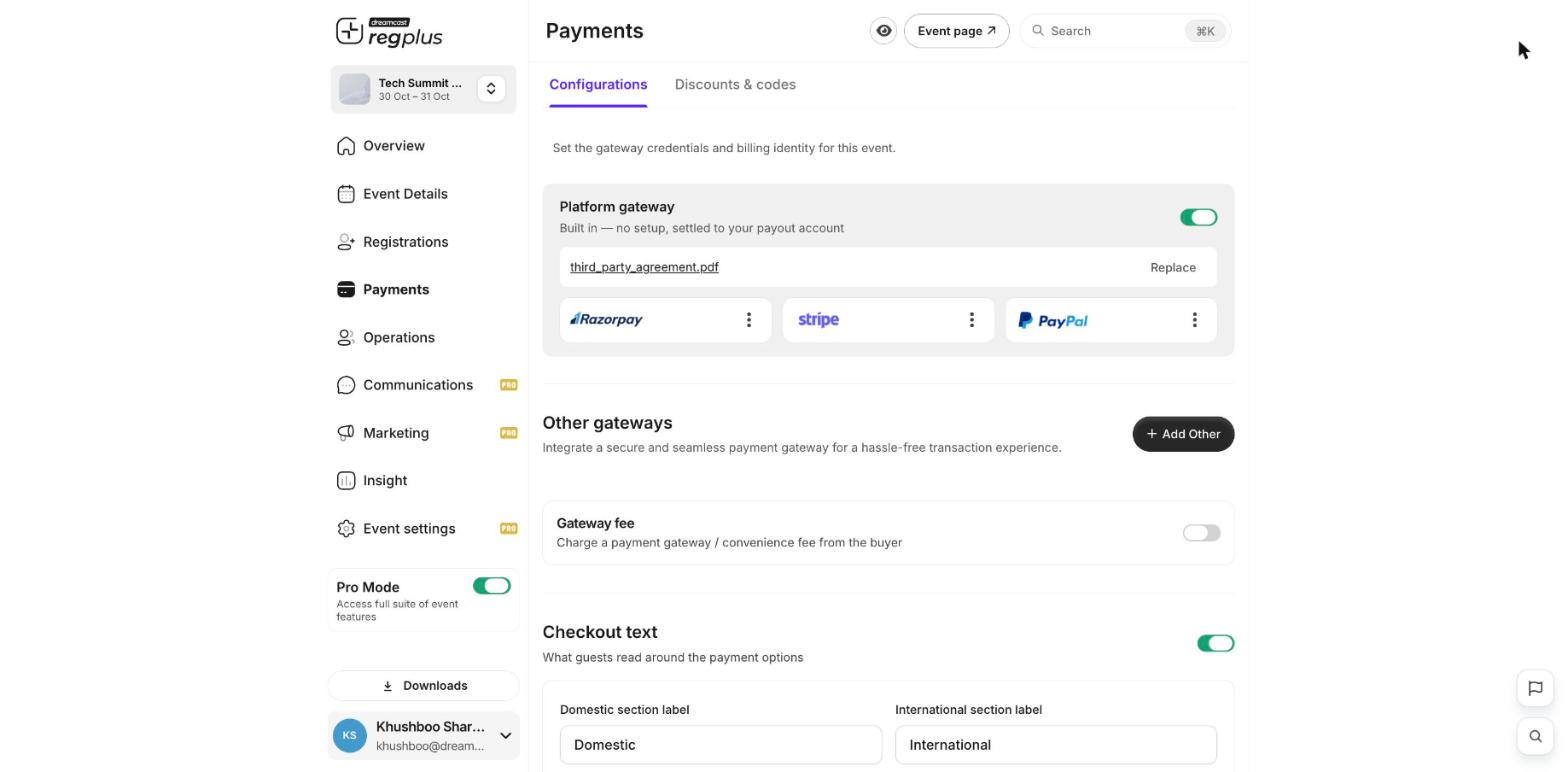
2
Add Razorpay
Under Other gateways, click Add Other and choose Razorpay. The connection form opens.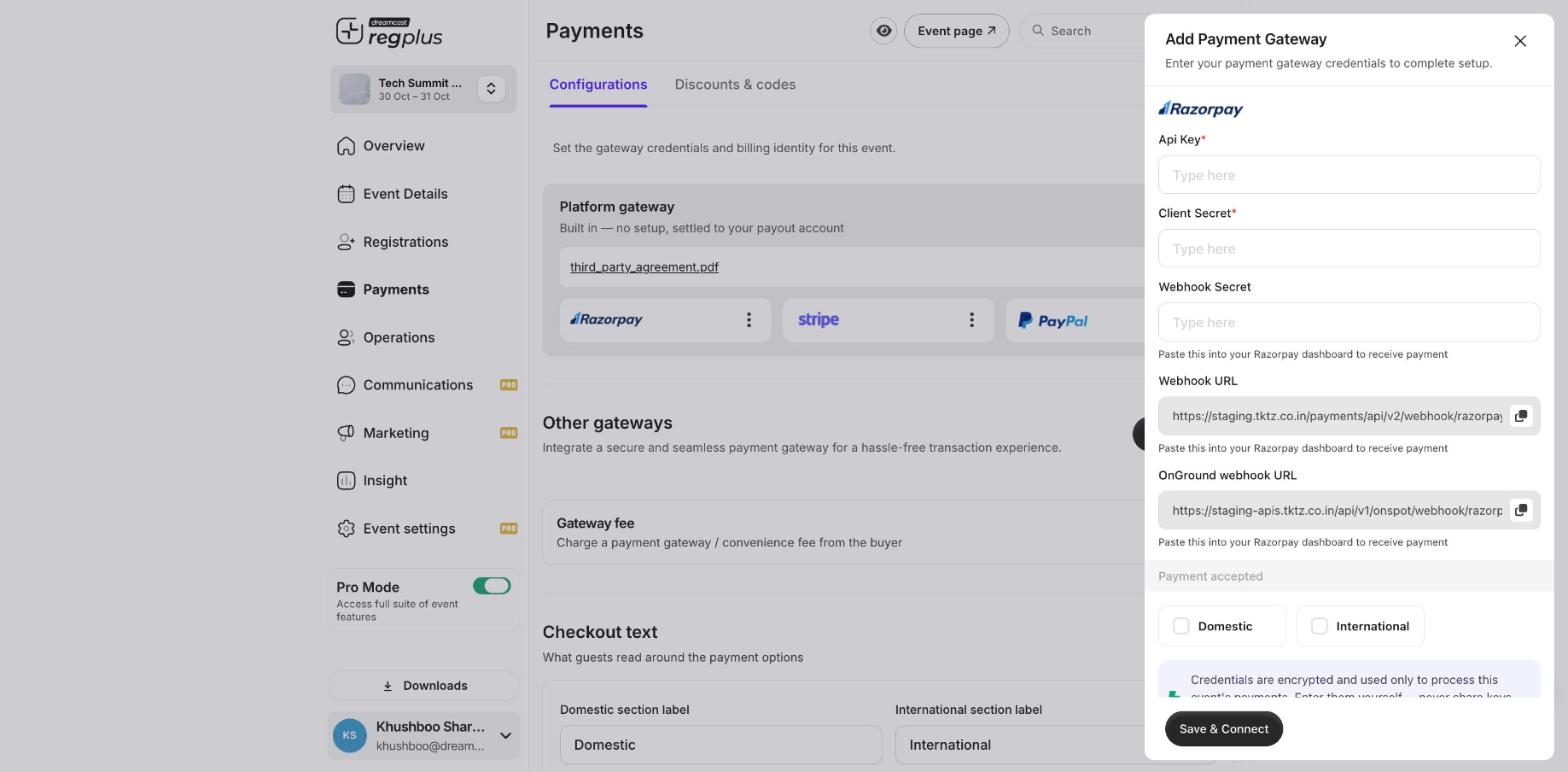
Step 2 — Get your keys from Razorpay
In a separate tab, sign in to your Razorpay Dashboard.1
Open API Keys
Go to Settings → API Keys.
2
Generate a key
Choose the mode — Test for trials or Live for real payments — and generate a key. Razorpay gives you a Key ID and a Key Secret.
3
Copy both values
Copy the Key ID and the Key Secret somewhere safe. The Key Secret is shown only once — if you lose it you must regenerate the pair.
Test and Live keys are separate. Use Test keys while trying things out, then switch to Live keys before you take real bookings.
Step 3 — Add a webhook in Razorpay
The webhook lets Razorpay tell Reg Plus the instant a payment succeeds, so bookings confirm on their own.1
Open Webhooks in Razorpay
In the Razorpay Dashboard, go to Settings → Webhooks and click Add New Webhook.
2
Paste the Webhook URL
Copy the Webhook URL from the Reg Plus form (the copy icon beside it) and paste it into Razorpay. If you run on-ground check-in, add a second webhook with the OnGround webhook URL too.
3
Set a webhook secret
Create a webhook secret (any strong phrase) and enter it in Razorpay. Keep a copy — the same secret goes into Reg Plus.
4
Select events and save
Select the payment events (such as payment.captured), then save the webhook.
Step 4 — Finish the connection in Reg Plus
Back in the Reg Plus Razorpay form, fill each field as below, then click Save & Connect.Test before you go live
Make a test booking on your event page and check the order shows as paid in Insight → Financial. If a payment is charged but the booking doesn’t confirm, the webhook is almost always the cause.Troubleshooting & FAQ
A payment was charged but the booking didn't confirm
A payment was charged but the booking didn't confirm
This means Razorpay couldn’t reach the webhook. Re-open Settings → Webhooks in Razorpay and check the Webhook URL matches the one in Reg Plus exactly, that the webhook secret is identical on both sides, and that payment.captured is one of the selected events.
Can I use Razorpay for some tickets and the platform gateway for others?
Can I use Razorpay for some tickets and the platform gateway for others?
The gateway applies to the whole event’s checkout. You choose one active gateway for the event rather than per ticket type.
How do refunds work with my own Razorpay?
How do refunds work with my own Razorpay?
Refund the guest in your Razorpay dashboard, then cancel their registration in Reg Plus so your counts update. See Issue a refund.
Do I enter my bank details in Reg Plus?
Do I enter my bank details in Reg Plus?
No. Money settles inside your own Razorpay account on Razorpay’s settlement schedule. Reg Plus only holds the API keys needed to create and confirm payments.
I switched from Test to Live keys — anything else to do?
I switched from Test to Live keys — anything else to do?
Generate Live API keys in Razorpay, add a Live-mode webhook with the same URL and secret, then update the Api Key and Client Secret in Reg Plus with the live values and save again.
What’s next?
Set up Stripe
Connect Stripe for international cards.
Check bounced orders
Spot payments that didn’t complete.