
Choose your gateway
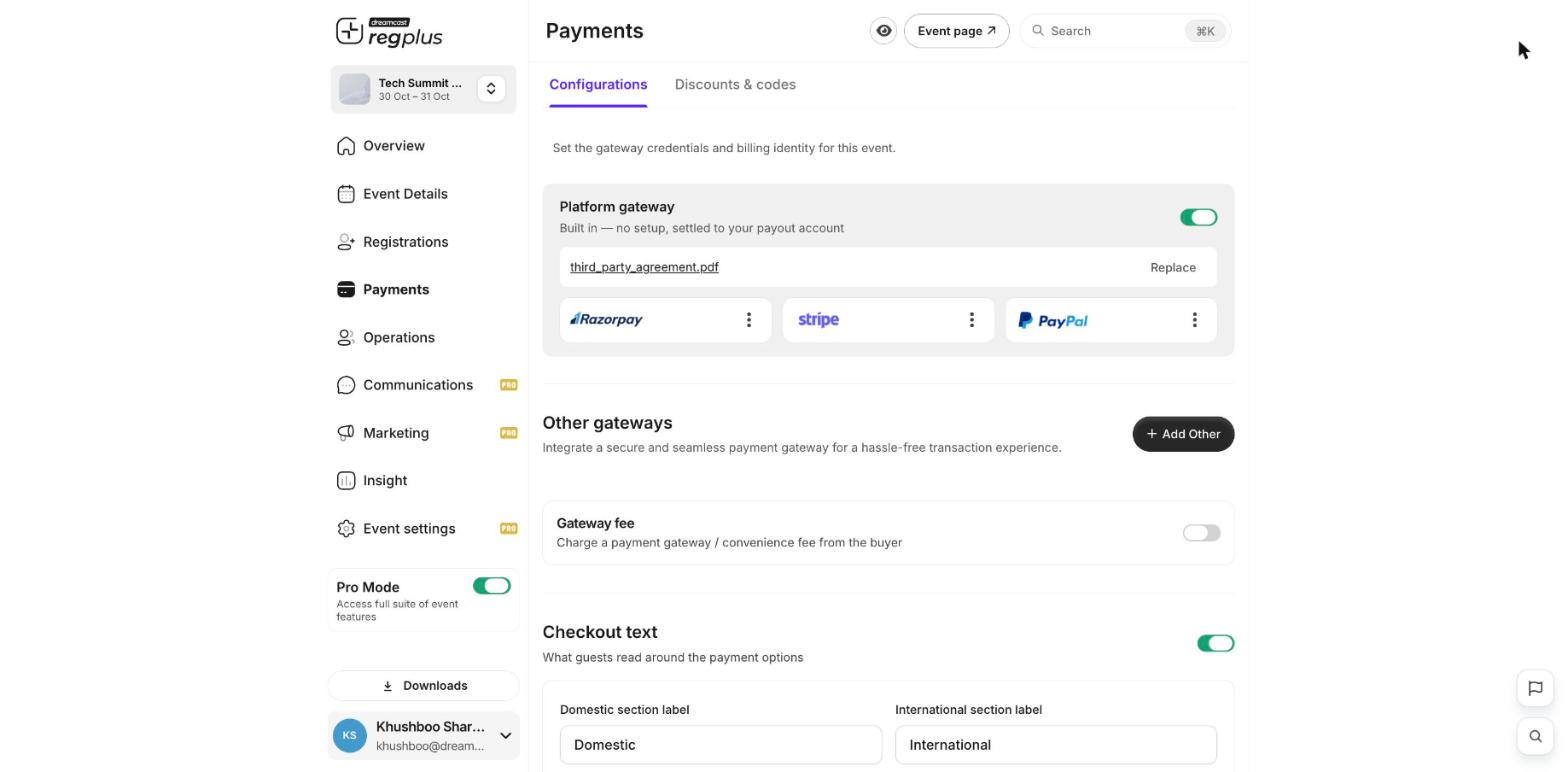
- Platform gateway — built in, no setup, settles to your payout account. It already offers Razorpay, Stripe and PayPal as methods; use the ⋮ on each to edit availability or turn one off.
- Other gateways — click Add Other to connect your own account. See Set up Razorpay, Set up Stripe or Set up PayPal.
Add a gateway fee (optional)
Turn on Gateway fee to pass a payment/convenience fee on to the buyer at checkout, rather than absorbing it yourself. Leave it off to include the fee in your ticket price.Write the checkout text
Under Checkout text you control what guests read around the payment options:
Click Save Changes when you’re done.
Set up taxes and invoices
Scroll to Taxes & Billing to collect tax and control the invoices guests receive.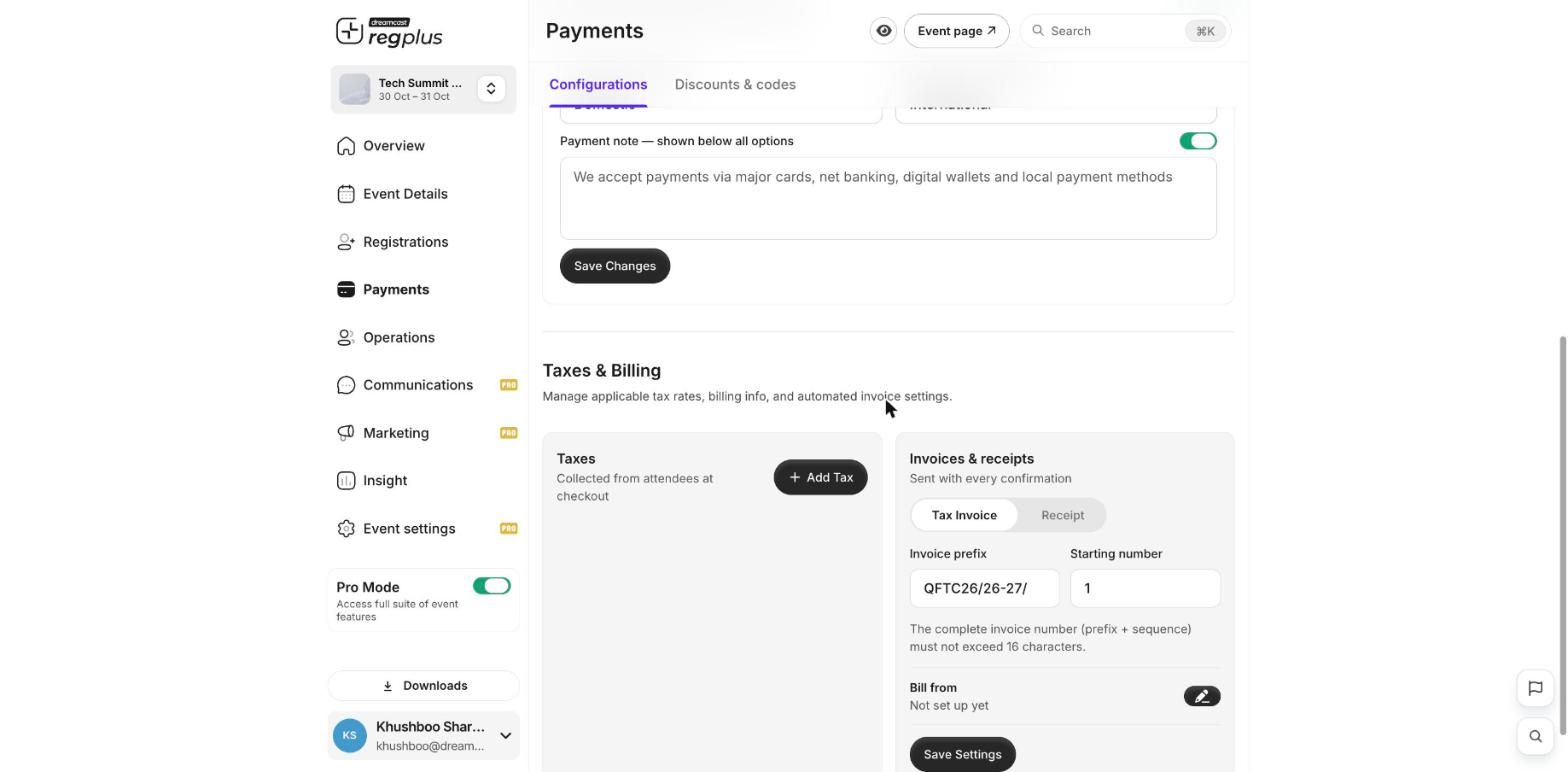
- Taxes — click Add Tax to collect a tax rate from attendees at checkout.
- Invoices & receipts — choose whether guests get a Tax Invoice or a Receipt with every confirmation.
- Invoice prefix and Starting number — set how invoice numbers are built. The complete number (prefix + sequence) must stay within 16 characters.
- Bill from — set your billing identity (your business name and address) that appears on invoices.
What’s next?
Create discount codes
Give guests money off at checkout.
Read your financial report
Track orders and revenue.