
In short
regplus sends your guests the right message at the right moment — a registration confirmation, an OTP, a reminder, a cancellation notice — from a set of ready-made templates. You decide which ones are switched on, which ticket types they go to, and exactly what they say. This guide covers both channels: email and WhatsApp.Where to find it: Open Communications from the left menu. The Emails and WhatsApp tabs hold the templates; the Integrations tab controls which server and provider they send through. This is a Pro feature.
The default email templates
The Emails tab lists 24 ready-made templates — one for each thing that can happen to a registration. Each row shows the template name, when it is scheduled, which ticket types it is assigned to, and an on/off switch.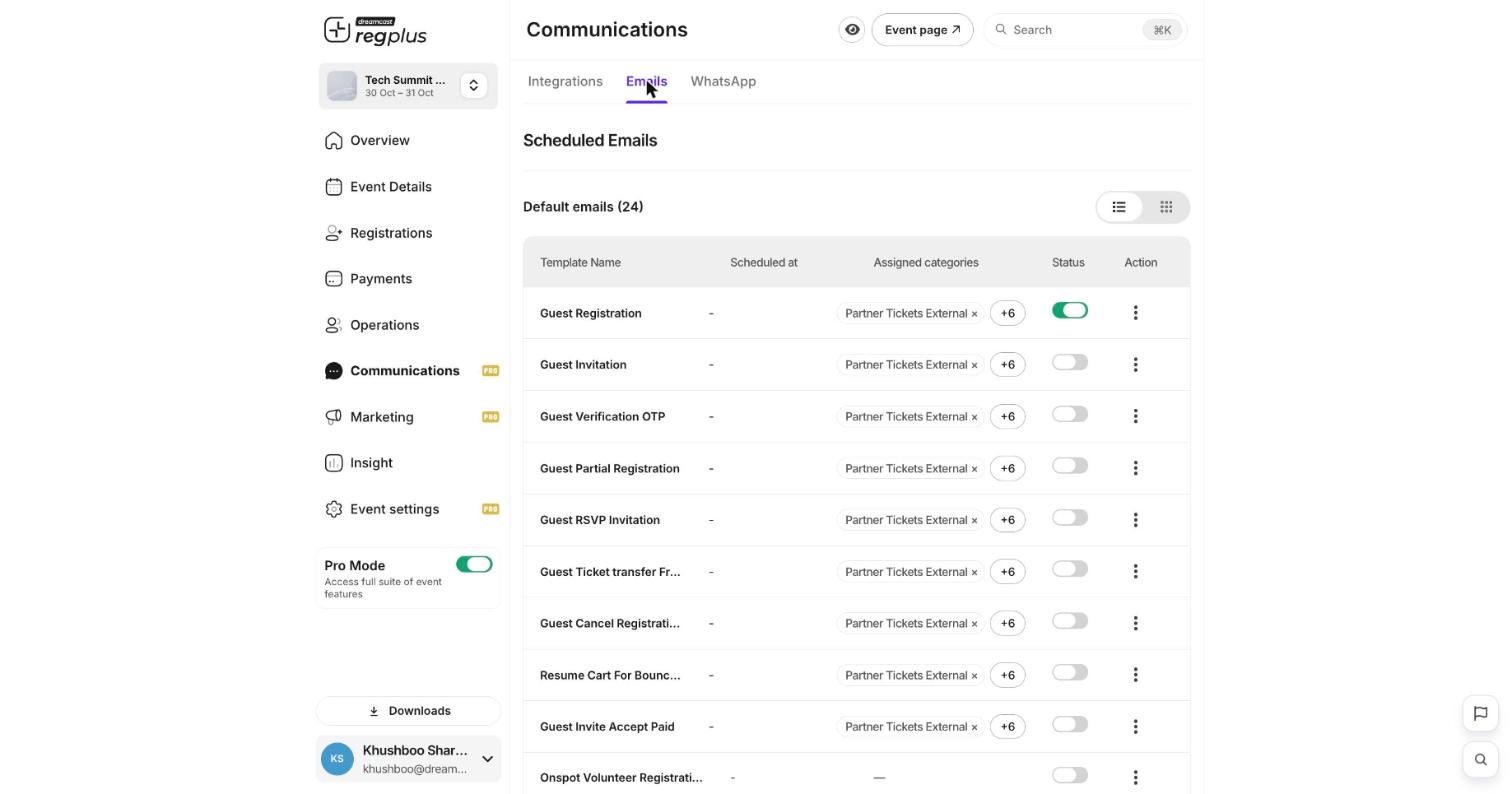
The Emails tab — every transactional template, with a per-template on/off switch.
Work with a template
The Action menu (the three dots at the end of each row) gives you four choices.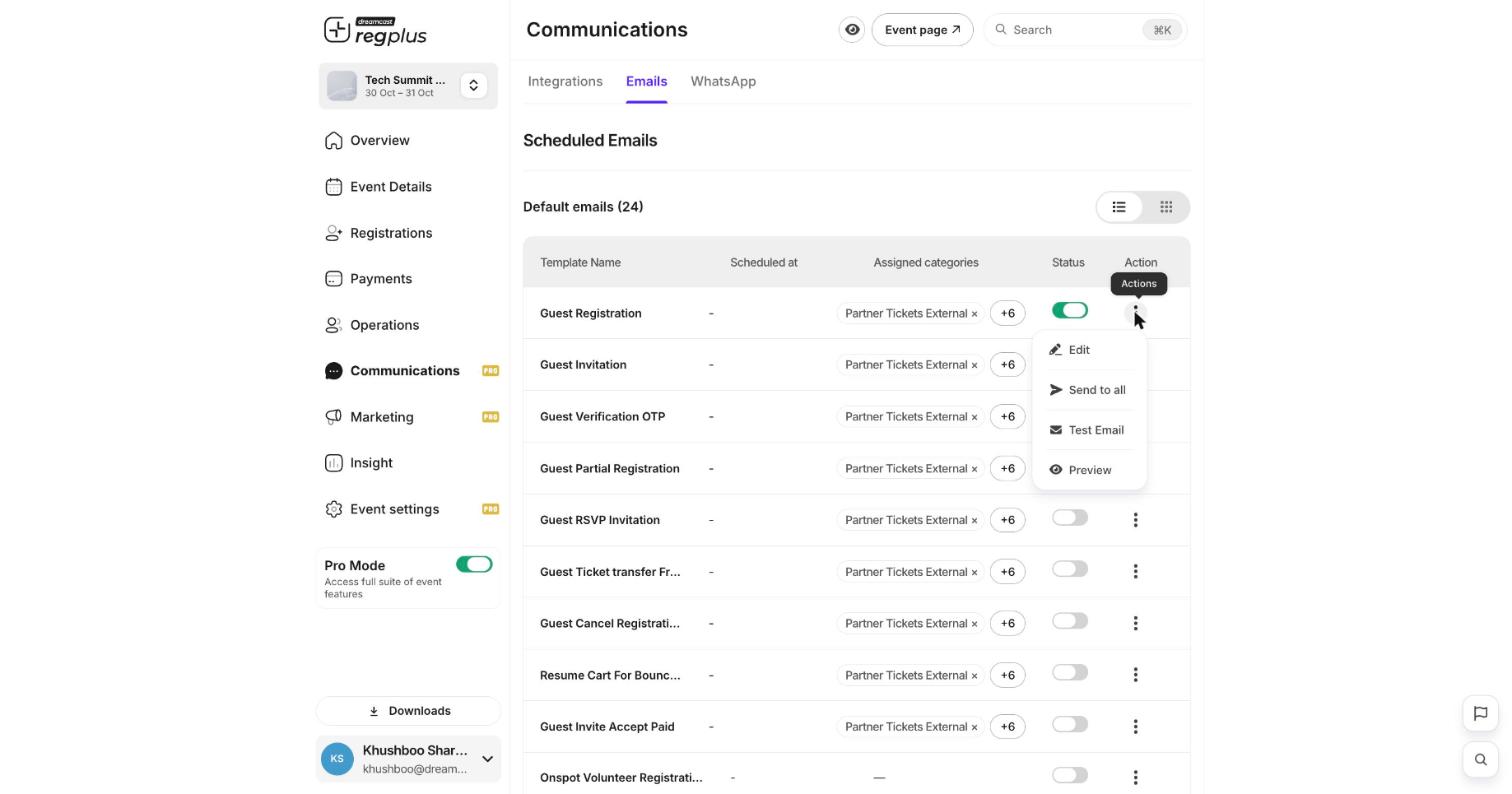
The per-template action menu.
Edit a template
Choosing Edit opens the template editor.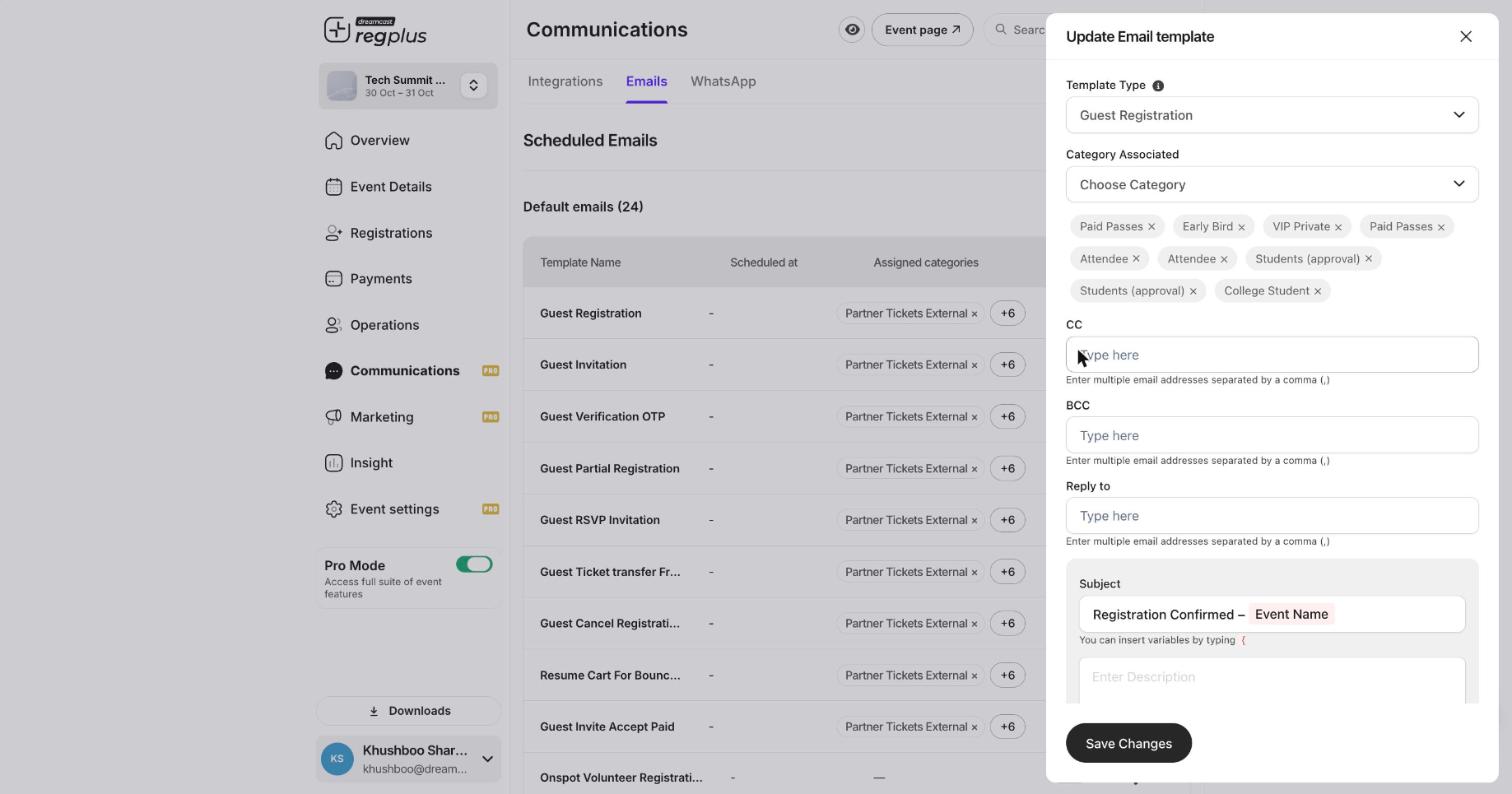
The email template editor — recipients, subject and body, with variables.
To drop in a guest’s details — their name, the event name, their ticket — type a curly brace
{ in the subject or body and pick a variable from the list. For example, the default registration subject is Registration Confirmed – {Event Name}. Variables fill in automatically for each guest.Choose how emails are sent
The Integrations tab decides the plumbing behind every email:- Use platform email server — the quick option, no setup. regplus sends on your behalf.
- Turn it off to send from your own email server, so emails come from your domain.
- Sender identity — set the Sender Name and Sender Email your guests see in their inbox.
Send over WhatsApp
The WhatsApp tab works the same way as emails, but over WhatsApp. You choose which account the messages send from: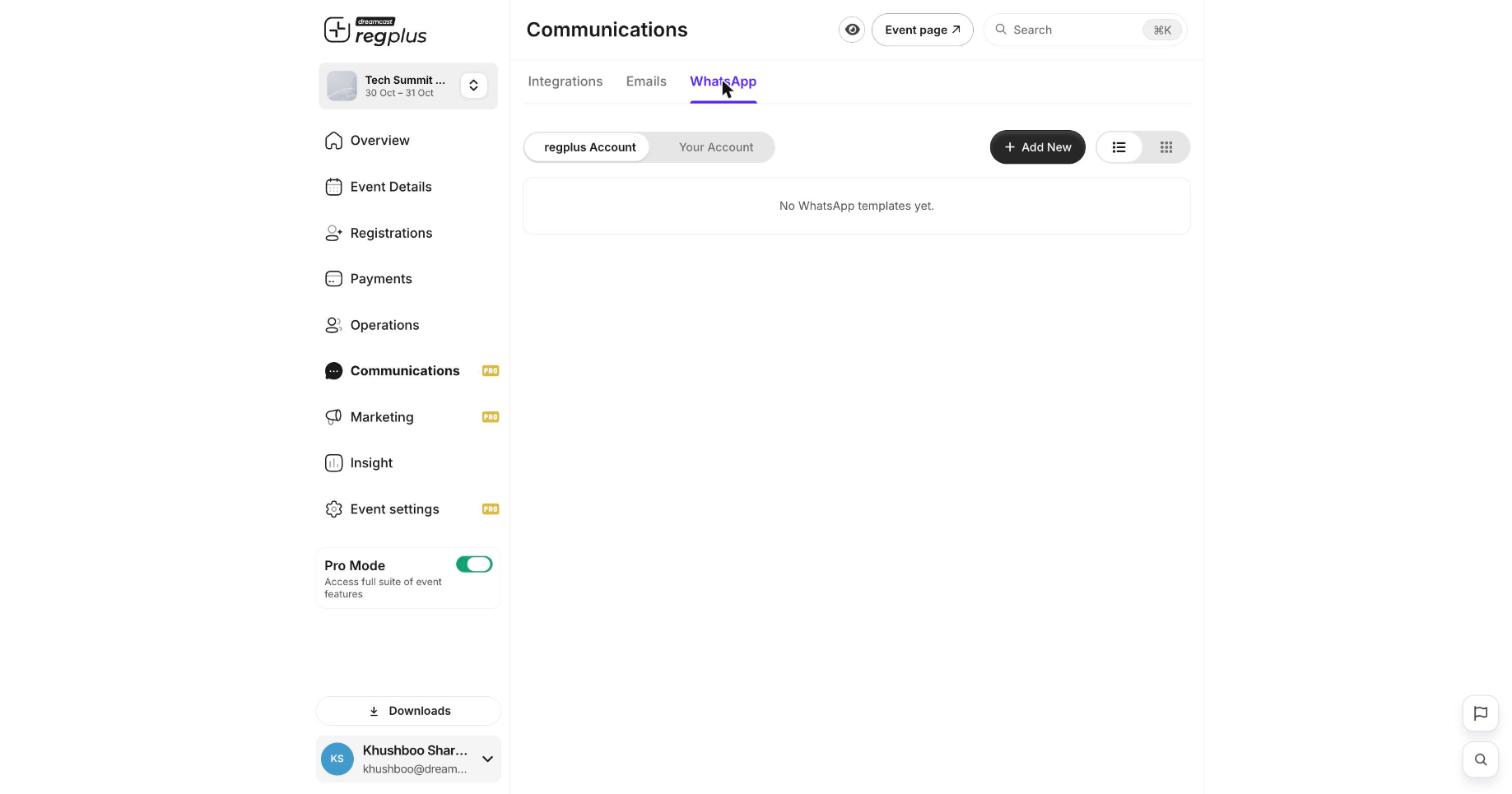
WhatsApp templates — send from the regplus account or connect your own.
To switch WhatsApp on, go to the Integrations tab, turn on Default WhatsApp integration, and use Sync Template to pull in the pre-approved templates. To use your own number instead, use Add Provider under Your WhatsApp providers.
FAQs & troubleshooting
A confirmation email is not going out. Why?
A confirmation email is not going out. Why?
Check two things: the template’s Status switch is on, and the guest’s ticket type is listed under Assigned categories. If either is missing, the email will not send to that guest.
Can I change the wording of a confirmation?
Can I change the wording of a confirmation?
Yes. Open the template’s Edit action and change the Subject and Description. Use the curly-brace variables to insert guest or event details, and send yourself a Test Email before saving.
How do I make emails come from my own domain?
How do I make emails come from my own domain?
On the Integrations tab, turn off Use platform email server and configure your own email server, then set your Sender identity.
Do I need my own WhatsApp number to send WhatsApp messages?
Do I need my own WhatsApp number to send WhatsApp messages?
No. The regplus Account option uses pre-approved templates with no setup. Connect Your Account only if you want messages to come from your own WhatsApp Business number.
What’s next?
Read your Insight reports
See how your sends and registrations are performing.
Manage your guest list
Check who has registered and chase pending guests.