
In short
Event settings is the admin corner of your event: who on your team can do what, which extensions are switched on, developer webhooks, and the delete button. This guide walks through all four tabs.Where to find it: Open Event settings from the left menu. This is a Pro feature. The four tabs are Team & roles, Extensions, Developers & API and Danger zone.
Team & roles
This tab has two halves — Roles (what each role can do) and People (who is on the team).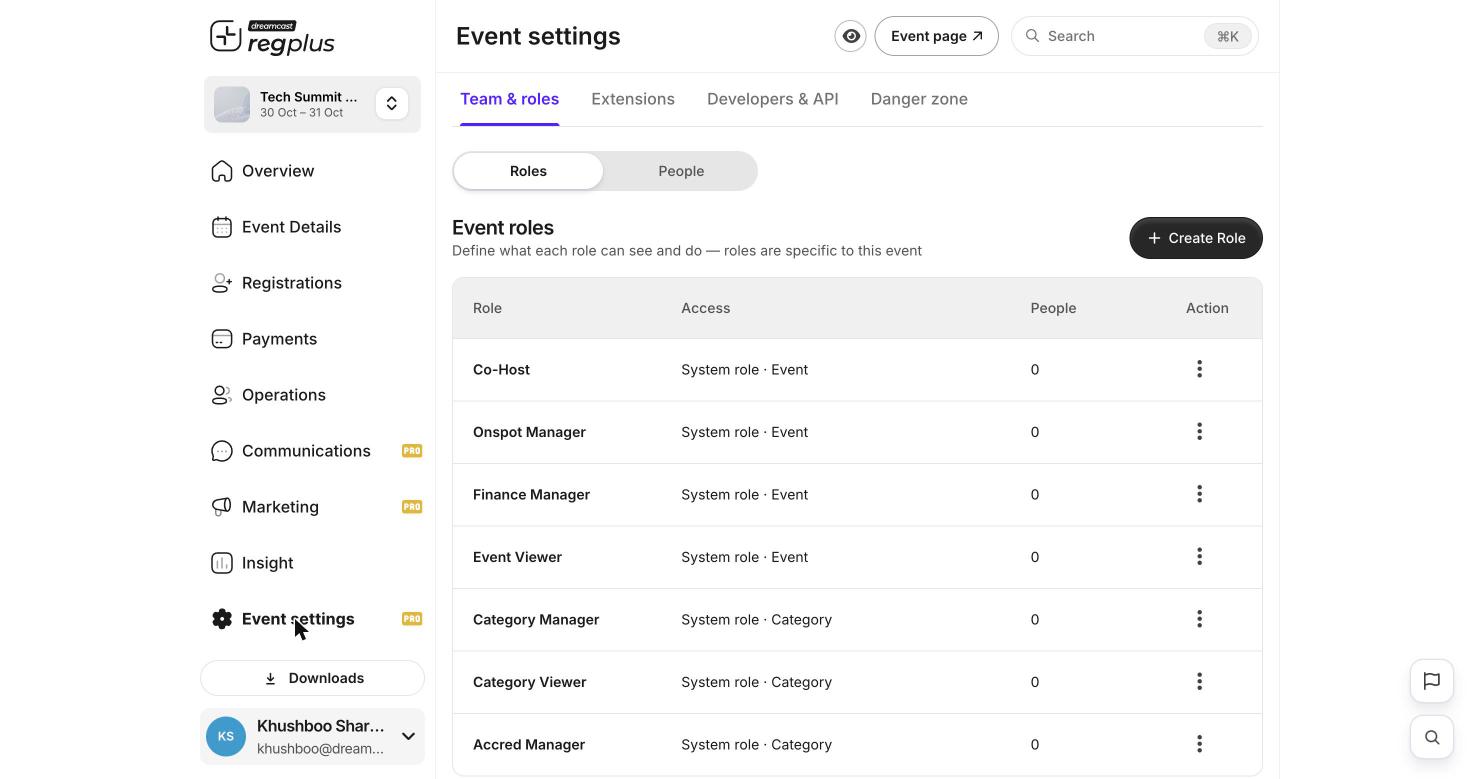
Event roles — ready-made roles, each scoped to the whole event or a single ticket type.
Roles
Roles are specific to this event. Each one has an Access scope — either the whole event, or a single ticket type (shown as Category). The ready-made system roles:
Use Create Role if you need a custom set of permissions beyond these.
People
Switch to People and use Invite Member to add someone by email and assign them one of the roles above. They get access scoped to exactly that role — nothing more.Extensions
Extensions connect your event to other tools. Some are connected once at the organisation level and then switched on per event; others are turned on right here.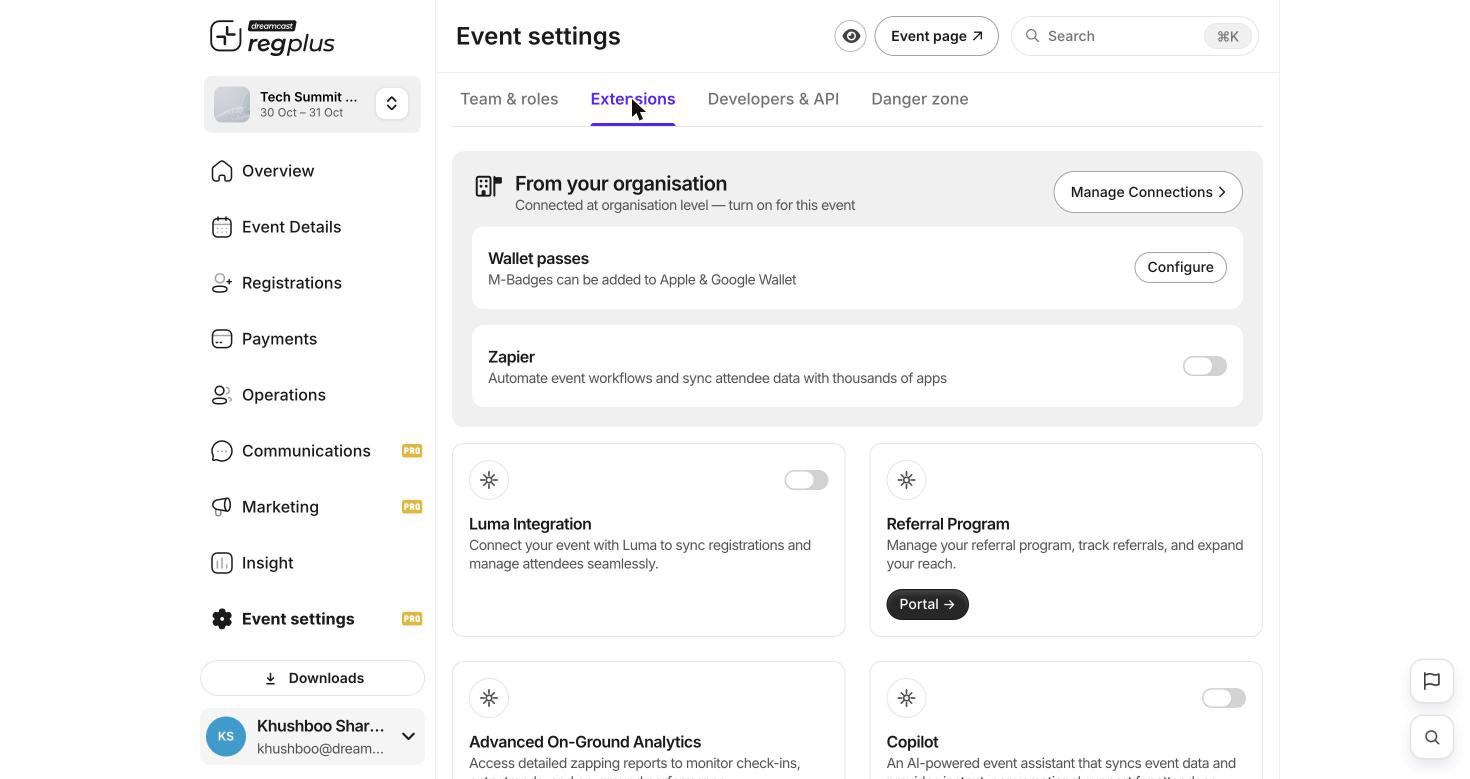
Extensions — organisation connections on top, individual extensions below.
Connections marked “From your organisation” are set up once at the organisation level — use Manage Connections — and then you just switch them on for each event that needs them.
Developers & API
The Developers & API tab is where you wire regplus into your own systems with webhooks. Click Add API to register an endpoint, and regplus will post event data (such as new registrations) to it as things happen — useful for syncing into a CRM or a data warehouse. If you have no webhooks yet, the list is simply empty.Danger zone
The Danger zone holds one irreversible action: Delete Event. It permanently removes every registration, payment and report for the event.FAQs & troubleshooting
I want a sponsor to manage only their own ticket type.
I want a sponsor to manage only their own ticket type.
Invite them as a Category Manager scoped to that ticket type. They will see and manage only that category, not the rest of the event.
How do I let a colleague see reports but not change anything?
How do I let a colleague see reports but not change anything?
Invite them as an Event Viewer — read-only access to the whole event.
Can I add my event's badges to Apple or Google Wallet?
Can I add my event's badges to Apple or Google Wallet?
Yes — turn on Wallet passes under Extensions and use Configure. Guests can then add their M-Badge to their phone’s wallet.
I turned on an extension but nothing happened.
I turned on an extension but nothing happened.
Some extensions are connected at the organisation level first. Use Manage Connections to check the connection exists, then switch it on for this event.
Is deleting an event reversible?
Is deleting an event reversible?
No. Everything — registrations, payments and reports — is permanently lost. Always export first.
What’s next?
Set up on-ground check-in
Give your Onspot Manager the check-in tools they need.
Read your Insight reports
Export everything before you ever touch the Danger zone.