
Everything on this page is the attendee’s view of your public event link (for example
reg.dreamcast.co/your-event). To change any of it, see Design the attendee journey.1. They open your event page
Your guest arrives on the event landing page from your invite link, a social post, or your discovery page. It shows your banner, the event name, date and venue, the host details, and the tiers they can book.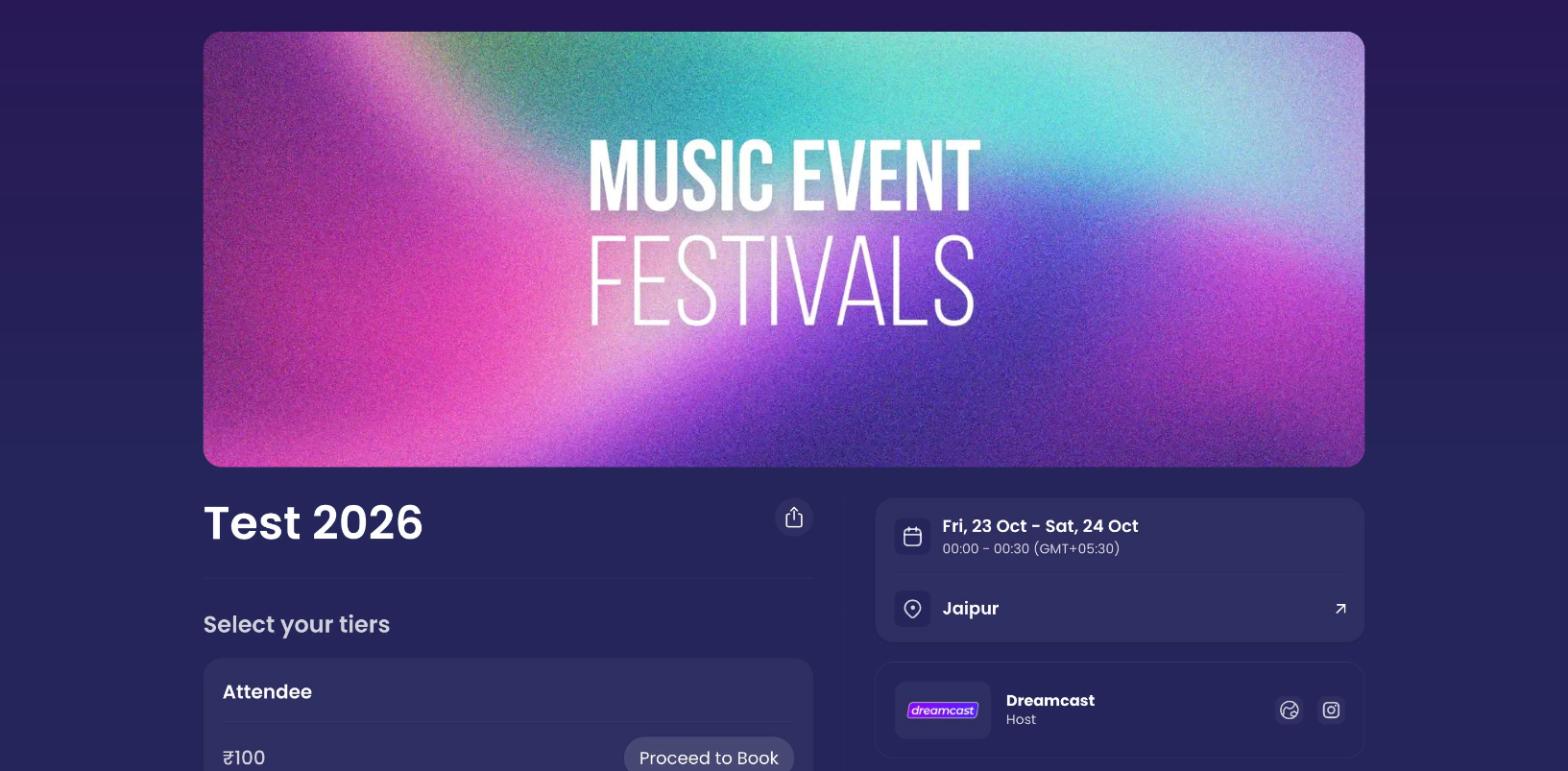
The event landing page — the first thing your guests see.
2. They choose a tier
Under Select your tiers, the guest picks a ticket type and clicks Proceed to Book. Free and paid tiers can sit side by side, and (if you’ve turned it on) each shows a free or paid tag so guests know what to expect.3. They enter their details
Next they choose how many tickets they want and fill in the details for each one. The form always asks for name, email and phone, plus any custom questions you’ve added.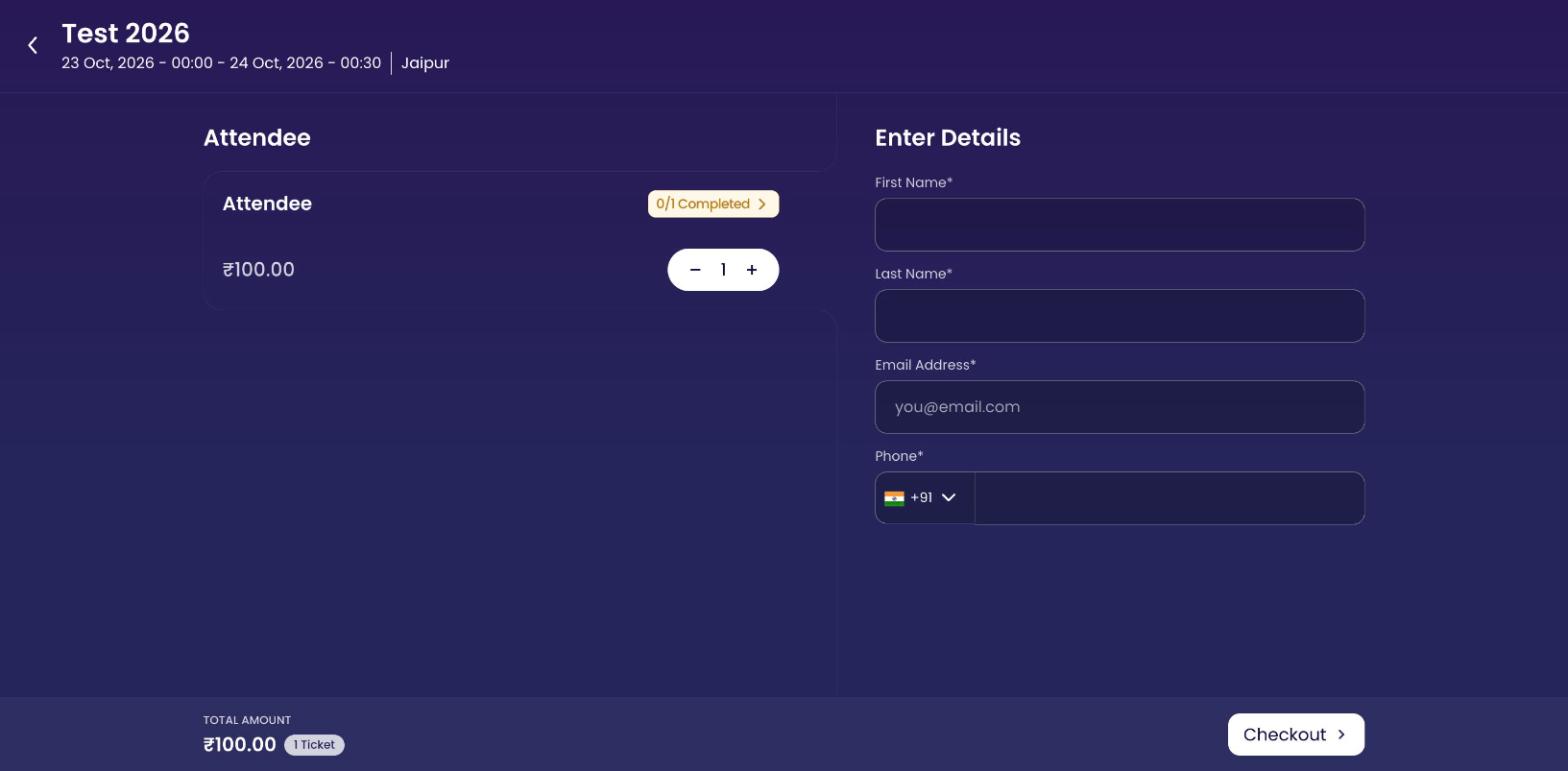
Entering attendee details — one set per ticket, with a running total.
4. They check out and pay
For a paid event, the guest lands on the payment step and picks a method under your Domestic and International sections, with any payment note you’ve written shown below. For a free event, there’s no payment step — the booking is confirmed straight away. If you set up discount codes, guests enter them here. See Payments and Discount codes.
Reviewing the booking before paying.
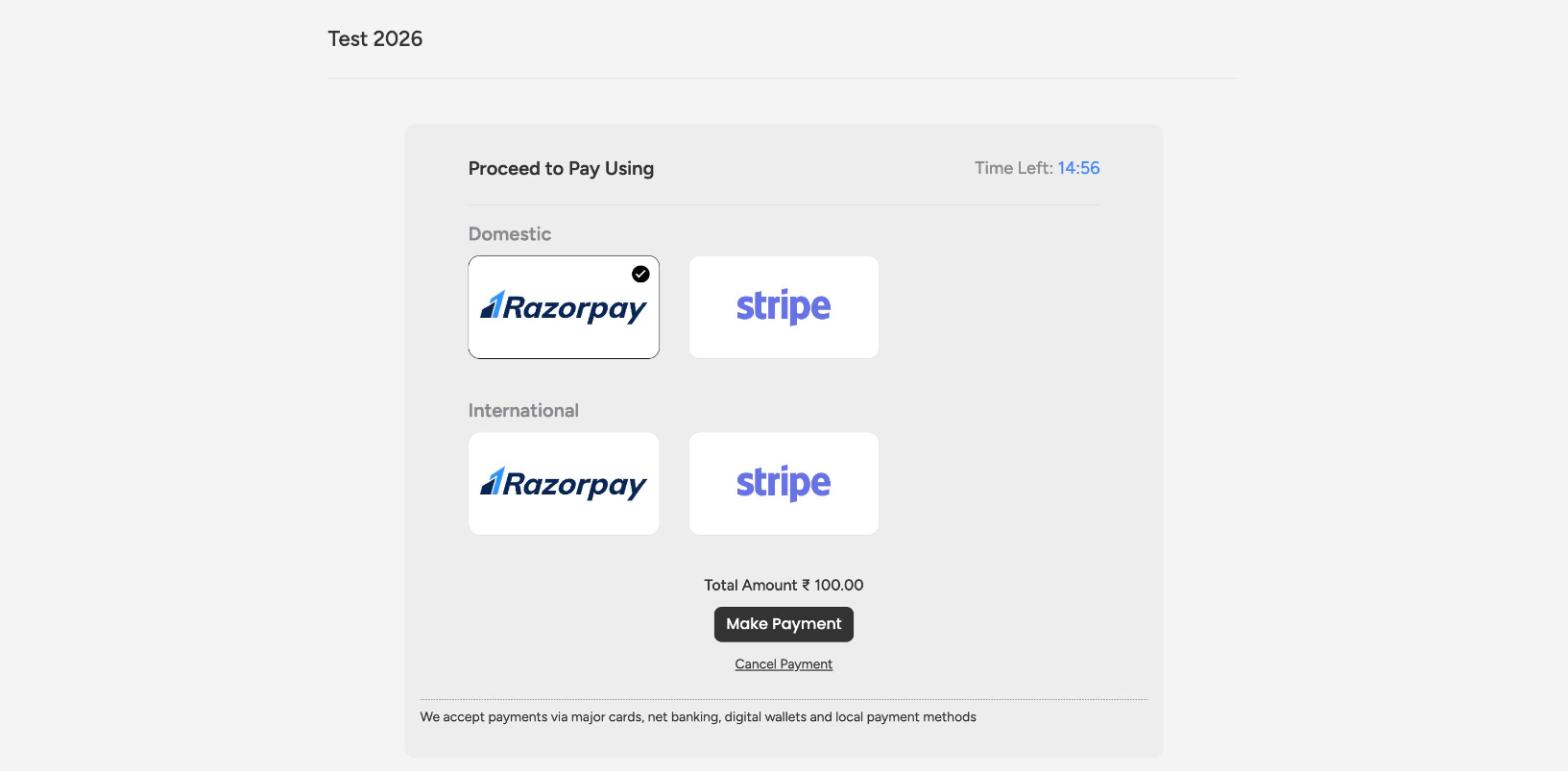
Choosing a payment method — domestic and international options, with your payment note below.
5. They get their confirmation
Once booked, the guest gets a confirmation by email and WhatsApp with their ticket — including a QR code (the mobile M-Badge) they’ll show at the door. They can add the event to their calendar too. You control these messages in Emails & WhatsApp and the ticket design in Badges.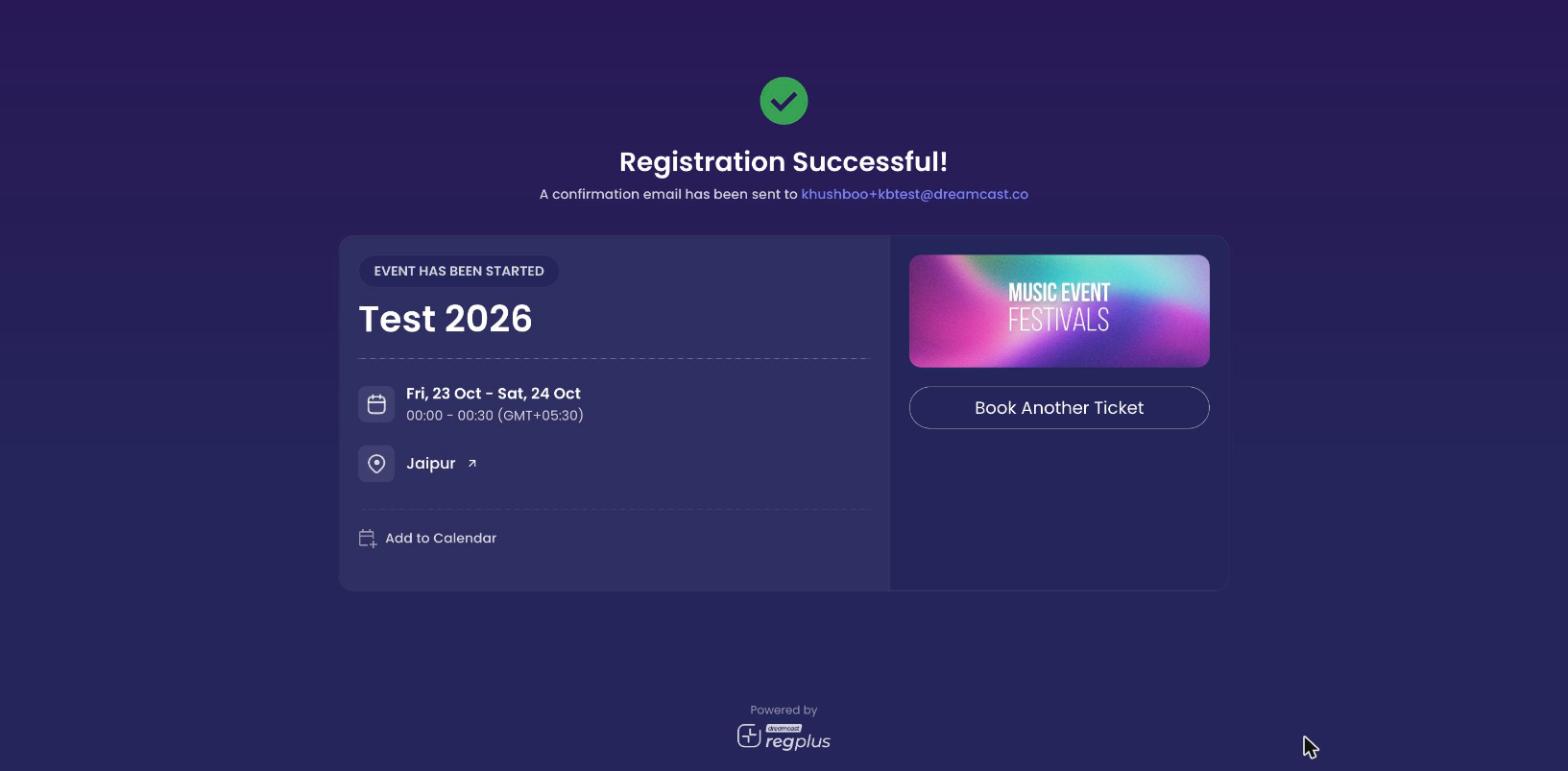
The confirmation screen — with add-to-calendar and the confirmation email on its way.
6. They arrive and check in
On event day, your team scans the guest’s QR code with the on-ground app to check them in — and, if you print badges, their badge comes out at that moment. See Check in guests.The journey at a glance
1
Open the event page
Banner, details and tiers.
2
Choose a tier
Free or paid, then Proceed to Book.
3
Enter details
Quantity and the form, per ticket.
4
Checkout & pay
Pay for paid events; free events skip this.
5
Get the ticket
Email and WhatsApp with a QR code.
6
Check in
QR scanned on the day.
FAQs
Do guests have to create an account to book?
Do guests have to create an account to book?
No — guests book by entering their details. They don’t need a host account.
Can one person book several tickets?
Can one person book several tickets?
Yes — they set the quantity and fill in the details for each attendee, within any limit you’ve set.
What does a guest get after booking?
What does a guest get after booking?
A confirmation by email and WhatsApp with their ticket and a QR code to show at check-in.
What’s next?
Design the attendee journey
Use backend settings to shape what guests experience.
Set up your event page
Control the page guests land on.