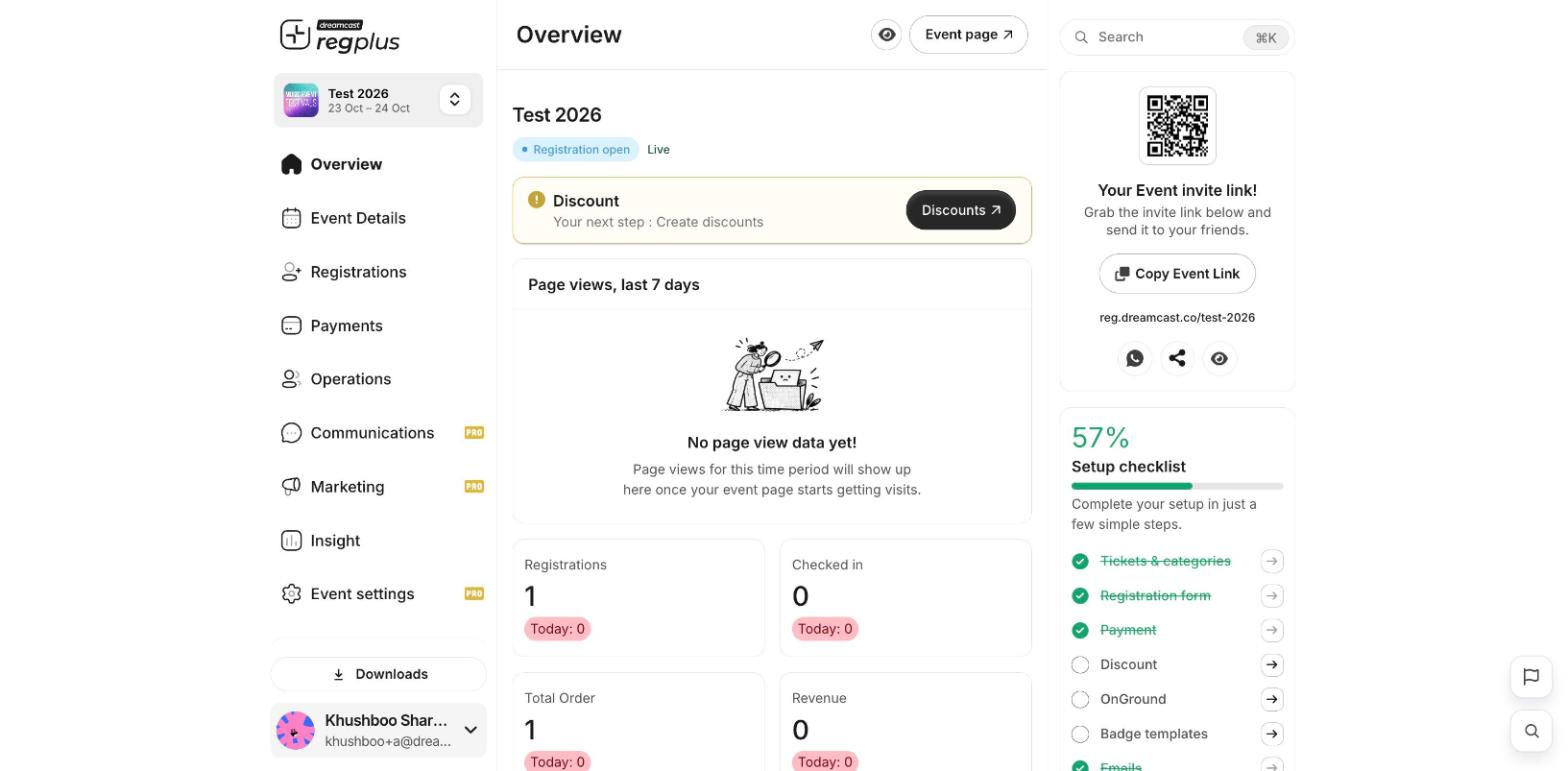
The event dashboard — modules on the left, your event at a glance in the centre and right.
Switch between events
The card at the top-left shows the event you’re working on. Click it to switch to another event, or go back to the full event list to open a different one or create a new event.The left menu
Each item opens a module for running your event:Some modules carry a PRO badge. Turn on Pro Mode at the bottom of the left menu to use them — see Plans & billing and Advanced mode.
Search anything
Use the Search box at the top (or pressCmd/Ctrl + K) to jump straight to a setting, page or attendee without clicking through the menus.
The right panel
On the Overview, the right panel gives you:- Your event invite link — a QR code and a Copy Event Link button to share your event.
- Setup checklist — the steps left to get your event ready; each links straight to where you finish it.
Downloads and your account
- Downloads (bottom of the menu) collects the exports you’ve generated. See Export your data.
- Your name (bottom-left) opens the account menu — profile, organisation, switch profile and logout. See Account & organisation.
FAQs
A module has a PRO badge and I can't open it.
A module has a PRO badge and I can't open it.
Turn on Pro Mode at the bottom of the left menu. If it’s still unavailable, it may depend on your plan — see Plans & billing.
How do I get back to all my events?
How do I get back to all my events?
Click the event card at the top-left and choose another event, or return to the event list.
What's the fastest way to find a setting?
What's the fastest way to find a setting?
Press
Cmd/Ctrl + K and search for it by name.What’s next?
Create your first event
Build and publish an event end to end.
Account & organisation
Set your profile, organisation and branding.